How to Optimize Minecraft for 144Hz Monitors (2026 Guide)
Filed under Vanilla-Enhanced Modpacks & QoL · How we create content
Key Takeaways
| Point | Details |
|---|---|
| Uncap your FPS first | Setting 'Max Framerate' to Unlimited in video settings is step one for high-refresh monitors. |
| Sodium is essential | This Fabric optimization mod rewrites the rendering engine, often doubling or tripling frame rates. |
| Iris adds smooth shaders | Pairing Iris with Sodium gives you high-FPS shader support without the usual performance hit. |
| Use G-Sync or FreeSync | Adaptive sync technology eliminates screen tearing when your FPS fluctuates below 144. |
| Fine-tune Java arguments | Allocating 4GB of RAM with optimized G1GC flags prevents stuttering during garbage collection. |
Table of Contents
- What Does 144Hz Optimization Mean for Minecraft?
- Why Does Vanilla Minecraft Struggle on High Refresh Rate Monitors?
- How to Install the Core Performance Mods for 144 FPS
- The Best In-Game Settings for Smooth 144Hz Gameplay
- Advanced Tweaks: Java, Drivers, and Adaptive Sync
- How to Put This Into Practice on Gaia Legends
- Frequently Asked Questions
- Recommended
You just unboxed a shiny new 144Hz monitor, launched Minecraft, and… it still feels choppy. The refresh rate is there, but the game isn't keeping up. Minecraft 144hz optimization mods are the missing link between your hardware and that buttery-smooth experience you paid for. This guide shows you exactly how to bridge the gap, transforming your blocky world into a fluid, responsive masterpiece.
What Does 144Hz Optimization Mean for Minecraft?
Optimizing Minecraft for 144Hz means configuring the game, its mods, and your system to consistently output at least 144 frames per second, matching your monitor's refresh cycle to eliminate stutter and tearing.
It's not just about hitting a number. True optimization is about frame consistency. A stable 144 FPS feels infinitely better than a fluctuating 200 FPS that drops to 60 whenever you turn around. You're aiming for a frame time of 6.94 milliseconds or less, every single frame. This requires a multi-layered approach: a fast mod loader, a rewritten rendering engine, and smart video settings.
Pro Tip: Don't assume a powerful GPU is enough. Minecraft's Java-based engine is notoriously CPU-bound. Optimization mods are far more impactful than a top-tier graphics card for achieving high frame rates.
The Pillars of High-FPS Gameplay
To reach a locked 144 FPS, you need to focus on three pillars:
- Render Optimization: How the game draws blocks and entities. This is where Sodium shines.
- Logic Optimization: How the game calculates ticks, chunk loading, and mob AI. Mods like Lithium handle this.
- System Harmony: Matching Java settings, GPU drivers, and adaptive sync to the game's output.
Why Does Vanilla Minecraft Struggle on High Refresh Rate Monitors?
Vanilla Minecraft's rendering engine uses an outdated, immediate-mode design that submits draw calls inefficiently, bottlenecking even powerful CPUs and preventing stable high frame rates.
The original game code was written long before 144Hz monitors became mainstream. It processes the world in a single-threaded manner, meaning one CPU core does the heavy lifting. When you explore new terrain, the chunk building process competes with the render thread, causing micro-stutters that are painfully obvious on a high-refresh display. Furthermore, the default garbage collection in Java can pause the entire game for tens of milliseconds, instantly turning your smooth 144 FPS into a jarring freeze.
The Java Garbage Collection Problem
Minecraft runs on Java, and Java manages memory automatically through a process called garbage collection (GC). The default GC pauses the game to clean up unused objects. These pauses, while brief, are catastrophic for frame pacing. Optimized Java arguments, which we'll cover later, instruct the garbage collector to work in short, concurrent bursts instead of long, game-freezing stops.
How to Install the Core Performance Mods for 144 FPS
The Fabric mod loader, combined with the Sodium, Lithium, and Iris mods, forms the golden trident of Minecraft 144hz optimization mods, delivering a 200-400% FPS increase over Vanilla in most scenarios.
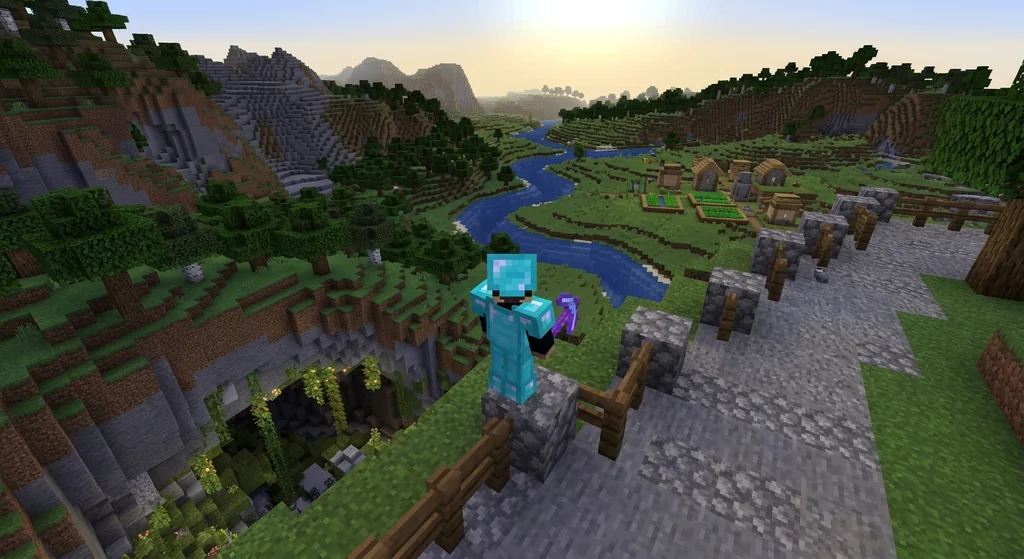
This is the most critical step. You can tweak settings all day, but without these core mods, you're fighting a losing battle. We'll use Fabric because it's lightweight and has the best selection of performance mods, as detailed in our guide on how to choose the best mod loader for Vanilla+ Minecraft in 2026.
Step-by-Step Mod Installation
- Install Fabric Loader: Download the Fabric installer for your Minecraft version and run it. This creates a new profile in your launcher.
- Download Mods: Get the
.jarfiles for Sodium, Lithium, and Iris Shaders from Modrinth or CurseForge. - Place in Mods Folder: Move the downloaded
.jarfiles into your Minecraft installation'smodsfolder. If one doesn't exist, create it. - Launch the Game: Select the Fabric profile in your Minecraft launcher and press play.
Warning: Never download mods from unofficial repost sites. They often contain outdated or malicious files. Stick to Modrinth, CurseForge, or the official GitHub releases.
Why This Combination Works
| Mod | Function | FPS Impact |
|---|---|---|
| Sodium | Rewrites the rendering engine for modern GPUs | Massive (+200-400%) |
| Lithium | Optimizes game logic (mob AI, physics, tick updates) | Improves consistency, reduces CPU load |
| Iris | Adds shader support without the FPS cost of OptiFine | Enables visuals with minimal FPS loss |
This trio is the backbone of packs like the Fabulously Optimized modpack. If you want a pre-configured solution, check out our guide on how to install the Fabulously Optimized modpack for high FPS. It bundles these mods with other quality-of-life improvements for an instant performance boost.
The Best In-Game Settings for Smooth 144Hz Gameplay
The most impactful video settings for a 144Hz display are setting Max Framerate to Unlimited, turning off V-Sync in-game, and using your GPU's adaptive sync technology to eliminate tearing.
With your mods installed, it's time to fine-tune the game itself. Sodium adds a completely revamped video settings screen with far more granular control than Vanilla.
Essential Sodium Settings
- Max Framerate: Unlimited. This is non-negotiable. Let the game run as fast as it can.
- VSync: OFF. In-game VSync often caps FPS to 60 and adds input lag. We'll handle tear prevention externally.
- Graphics Quality: Fancy or Fabulous. With Sodium, the performance cost of these is negligible on modern hardware.
- Chunk Builder: Threaded. This moves chunk building to a separate CPU thread, drastically reducing stutters when loading new terrain.
- Entity Culling: ON. This skips rendering entities you can't see. A simple toggle that can net you 15-25% more FPS in crowded areas (via Modrinth).
Why You Should Never Use In-Game V-Sync
In-game V-Sync is a blunt tool. It queues frames, which adds significant input lag—the bane of a responsive 144Hz experience. A delay of even 30-50ms between your mouse click and the block breaking makes the game feel sluggish. Instead, use G-Sync (NVIDIA) or FreeSync (AMD) from your GPU control panel. These technologies dynamically match your monitor's refresh rate to the game's FPS, eliminating tearing without the lag penalty.
Advanced Tweaks: Java, Drivers, and Adaptive Sync
Updating to Java 21 with optimized G1GC arguments and enabling G-Sync/FreeSync are the final, high-impact tweaks that lock in a tear-free, stutter-free 144 FPS experience.
You've installed the mods and dialed in the settings. Now, we go under the hood. These advanced tweaks squeeze out the last drops of performance and ensure the game's output is perfectly synchronized with your monitor.
Optimized JVM Arguments
Minecraft 1.20.5 and later ship with Java 21, which has a much better default garbage collector than older versions. You can guide it further with custom JVM arguments. In your launcher (e.g., Prism Launcher or the official one), find the JVM arguments field and paste these:
-Xmx4G -XX:+UseG1GC -XX:+ParallelRefProcEnabled -XX:MaxGCPauseMillis=200 -XX:+UnlockExperimentalVMOptions -XX:+DisableExplicitGC -XX:+AlwaysPreTouch -XX:G1NewSizePercent=30 -XX:G1MaxNewSizePercent=40 -XX:G1HeapRegionSize=8M -XX:G1ReservePercent=20 -XX:G1HeapWastePercent=5 -XX:G1MixedGCCountTarget=4 -XX:InitiatingHeapOccupancyPercent=15 -XX:G1MixedGCLiveThresholdPercent=90 -XX:G1RSetUpdatingPauseTimePercent=5 -XX:SurvivorRatio=32 -XX:+PerfDisableSharedMem -XX:MaxTenuringThreshold=1
This tells Java to use the G1 garbage collector, allocate 4GB of RAM, and perform collection in short, frequent bursts to avoid long freeze frames. For a deeper dive into managing your modded setup, read our guide on how to manage mod updates and dependencies in Minecraft 2026.
Enabling Adaptive Sync
- Open your GPU Control Panel: NVIDIA Control Panel or AMD Adrenalin Software.
- Find G-Sync/FreeSync settings: Ensure it's enabled for both fullscreen and windowed modes.
- Cap your FPS globally: Set a global Max Frame Rate to 3 FPS below your monitor's max (e.g., 141 FPS for a 144Hz monitor). This ensures adaptive sync never disengages at the top end, preventing tearing.
How to Put This Into Practice on Gaia Legends
Everything you've learned here translates directly to a superior experience on Gaia Legends. Our server is a vanilla-enhanced SMP, meaning you get the pure, authentic Minecraft experience with quality-of-life improvements. Connecting with a fully optimized client, as described above, allows you to explore our sprawling player-made cities, participate in server events, and engage in combat with zero client-side lag.
You can use the exact Fabric mod setup from this guide to connect to our server. The smooth frame pacing makes redstone contraptions feel more responsive and PvP encounters far more skill-based. Gaia Legends is free to join, non-pay-to-win, and supports Java + Bedrock crossplay. Take your newly optimized game for a spin in a thriving community.
Join at gaialegends.pro and start your legend today.
Conclusion
Achieving a true 144Hz experience in Minecraft is a journey of software, not just hardware. The path is clear:
- Mods are mandatory: Sodium, Lithium, and Iris on the Fabric loader provide the foundational FPS leap.
- Settings are the fine-tuning: Uncapped FPS, no V-Sync, and threaded chunk building prevent self-inflicted lag.
- System synergy is the lock-in: JVM arguments and adaptive sync eliminate the last micro-stutters and tears.
Don't let your high-refresh monitor go to waste. Install these mods, tweak your settings, and feel the difference that a true 144 FPS Minecraft experience delivers.
Ready to play? Join Gaia Legends today — no pay-to-win, Java + Bedrock crossplay.
- Java:
join.gaialegends.pro - Bedrock:
join.gaialegends.pro— Port19132
Further reading
These references were recorded with the article; specific claims have not been matched to source excerpts.
Frequently Asked Questions
What are the best Minecraft 144hz optimization mods in 2026?
The best mods are Sodium for rendering, Lithium for game logic, and Iris for high-FPS shaders, all running on the Fabric mod loader. Together, they can triple your frame rate compared to Vanilla. Pair them with FerriteCore and ImmediatelyFast for even more gains, especially on lower-end systems.
Why does Minecraft feel laggy even on a 144Hz monitor?
A high refresh rate monitor can't fix a low frame rate from the game. Vanilla Minecraft's inefficient rendering engine and single-threaded chunk loading cause frame drops and micro-stutters. Without optimization mods, your computer isn't producing enough frames for the monitor to display smoothly.
Should I use OptiFine or Sodium for high FPS?
Use Sodium. In 2026, Sodium has completely surpassed OptiFine in both performance gains and mod compatibility on the Fabric loader. It provides a much larger FPS boost and is open-source, meaning it's updated faster and works seamlessly with other optimization mods like Iris and Lithium.
How do I stop screen tearing in Minecraft at high FPS?
Turn off in-game V-Sync and enable G-Sync (NVIDIA) or FreeSync (AMD) in your GPU control panel. Then, cap your global frame rate 3 FPS below your monitor's maximum, like 141 FPS for a 144Hz display. This eliminates tearing without the input lag caused by traditional V-Sync.
What JVM arguments should I use for Minecraft 144Hz?
Use Java 21 with G1GC arguments. The key flags are `-Xmx4G` to allocate enough RAM and `-XX:+UseG1GC` for modern garbage collection. A full optimized string reduces stutter by telling Java to collect garbage in short, frequent passes instead of long pauses that freeze the game.
Can I get 144 FPS in Minecraft with shaders on?
Yes, with the Iris Shaders mod paired with Sodium. Iris is specifically designed to run shader packs with minimal overhead. On a mid-to-high-end GPU, you can easily maintain 144 FPS with performance-focused shaders like Complementary Reimagined or Sildur's Enhanced Default.
Related guides
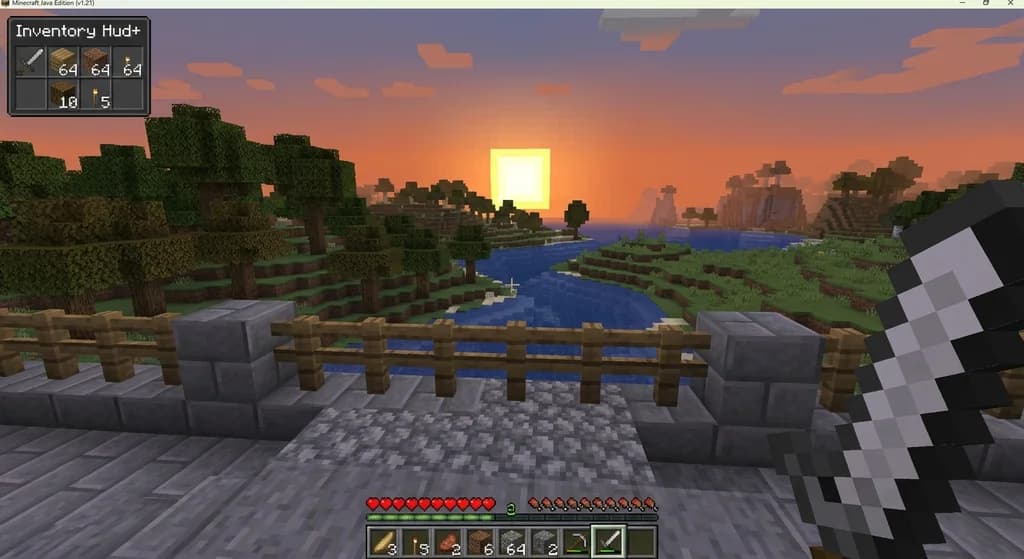
HUD Customization with Mods in Minecraft
Discover the best Minecraft HUD mods for customizing your interface. This quick reference covers HUD Lib, Resource Bar API, Inventory Hud+, Apple Skin, and how modpacks use them for better gameplay awareness.
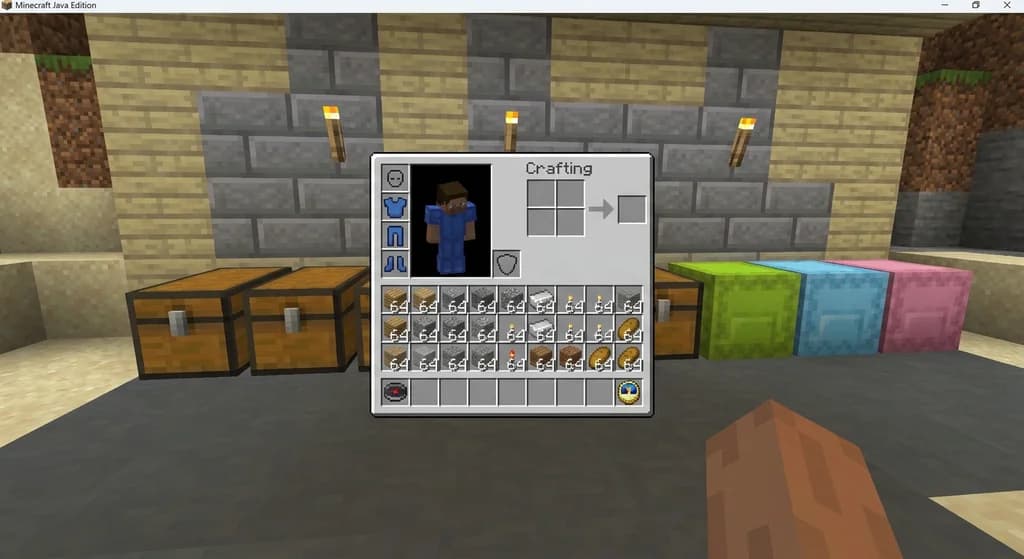
Inventory Organization Mods for Minecraft: Quick Reference
Quick reference for the best inventory organization mods in Minecraft, including InventoryTweaks, Playerautoma, and OFF Client. Learn their features, compatibility, and how to choose the right one.
Using a Base Modpack to Create Your Own Minecraft Modpack
Learn how to use a base modpack as a foundation for your own custom Minecraft modpack. Cut setup time, avoid conflicts, and build the perfect pack for your playstyle.
Aged Light Modpack: Quick Reference
Discover the Aged Light Modpack for Minecraft Fabric 1.20.1. This quick reference covers its vanilla-enhanced features, community influence, and how it fits into the modpack ecosystem.
Have a question or another approach?
Compare notes with other readers. Include your edition and version when discussing mechanics.