How to Use F3 Debug Screen for Faster Minecraft Speedruns (2026 Guide)
Filed under Speedrunning & Competitive Minecraft · How we create content
Key Takeaways
| Point | Details |
|---|---|
| Master key F3 metrics | Coordinates, biome, light level, and targeted block data are crucial for speedrunning. |
| Optimize F3 settings | Toggle off unnecessary lines (e.g., client/server lag) and reduce render distance to 4 chunks for maximum FPS. |
| Navigate faster with coordinates | Use the X,Z grid to path straight to structures and nether portals, saving minutes. |
| Leverage the debug screen for portal linking | Match overworld and nether coordinates to ensure one-way portal links. |
| Adjust FOV and performance | Quake Pro FOV (90-110) improves peripheral vision; keep render distance low for stable FPS. |
Table of Contents
- What Is the F3 Debug Screen and Why Do Speedrunners Use It?
- How Do You Read Key F3 Metrics for Speedrunning?
- Best F3 Settings to Optimize Your Minecraft Speedrun
- How to Use F3 Coordinates to Navigate Faster
- Why Does FOV and Render Distance Affect Speedrun Performance?
- Tips for Using F3 to Find Structures and Portals
- How to Put This Into Practice on Gaia Legends
- Conclusion
- Frequently Asked Questions
- Recommended
Imagine you've just spawned into a new world for a speedrun. Every second counts. You know the route, you've practiced the moves, but there's one tool that separates top split times from average runs: the F3 debug screen. Most players ignore it or only glance at coordinates. But when you understand every number on that screen, you can save precious seconds — finding the nearest village, linking nether portals precisely, and adjusting settings on the fly for maximum performance.
In this 2026 guide, you'll learn exactly how to use the minecraft speedrun f3 debug screen to cut time from your personal bests. We'll cover which metrics matter most, how to configure F3 for speed runs, and practical navigation techniques that shave minutes off your splits. Whether you're grinding for a world record or just trying to beat your PB, these tips will level up your speedrunning game.
What Is the F3 Debug Screen and Why Do Speedrunners Use It?
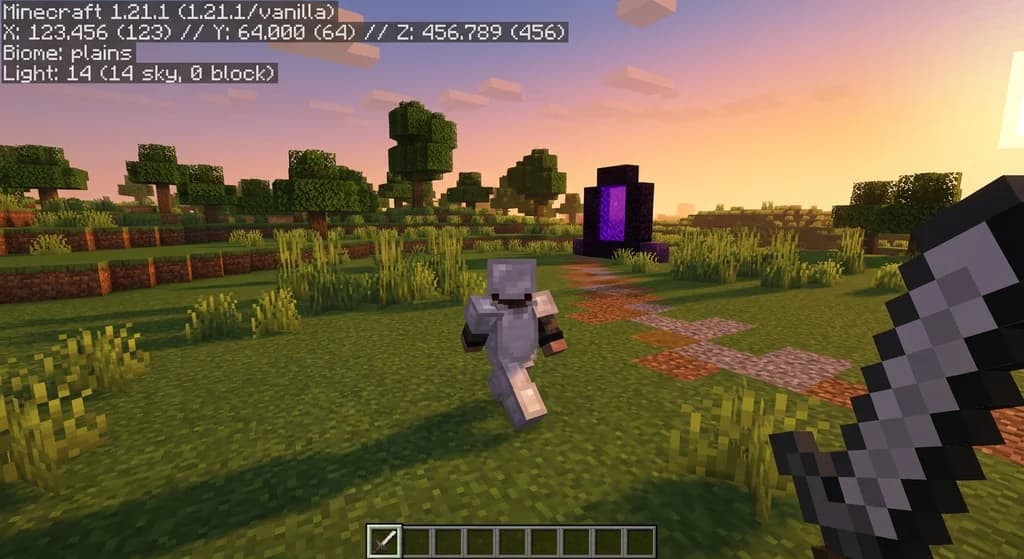
The F3 debug screen is an overlay that displays detailed technical information about your game world, including exact coordinates, biome, light levels, block states, and performance metrics — essential for speedrunning precision.
Pressed by default with F3 (or Fn+F3 on some laptops), this screen gives you more data than you'll ever need, but speedrunners only care about a handful of fields. The debug screen updates every tick — 20 times per second — so you can track your position in real-time.
For speedrunning, the debug screen is indispensable for three reasons:
- Navigation: Read your exact XYZ coordinates to path straight toward structures or nether portals without guessing.
- Portal linking: When entering the nether, your overworld coordinates divide by 8. The debug screen lets you calculate the perfect nether-side arrival point.
- Performance tuning: The top-left corner shows FPS, render distance, and memory usage. Spotting lag spikes early helps you adjust settings mid-run.
If you're serious about improving, you'll want to analyze your speedruns with split timing and VOD review to see where those extra seconds go.
How Do You Read Key F3 Metrics for Speedrunning?
Only a handful of F3 fields matter for speedrunning: coordinates, biome, light level, targeted block, and the E (eye height) value — everything else is noise.
When you press F3, the left side of your screen fills with a wall of text. Here are the fields to focus on:
| Metric | What It Shows | Why It Matters for Speedrunning |
|---|---|---|
| XYZ | Your exact position in blocks | Navigate to specific coordinates for structures or portals. |
| Biome | Current biome name (e.g., plains, desert) | Identify spawn biome instantly; know if you need to travel for a village. |
| Light | Sky and block light levels | Determine if mobs can spawn; essential for safe nether tunnels. |
| Targeted Block | Block coordinates and state (e.g., grass block) | Perfect for placing blocks exactly, like end portal frames or bed obstructions. |
| E (Eye height) | Y-level of your eyes | Critical for pearl throws, falling distance, and hitting the right height for nether roof. |
Let's dig into each one with practical examples.
Coordinates (XYZ)
The F3 screen displays coordinates that update every game tick (20 times per second), allowing you to pinpoint your exact location at any moment (via Minecraft Wiki). For speedrunners, this is gold. When you know the coordinates of a stronghold or a village, you can run directly toward it using the in-game debug screen as a compass.
Biome Reading
Your biome determines what structures generate. In a speedrun, you want to spawn in a temperate biome (plains, forest) near a village. The debug screen immediately tells you if you need to reroll or adjust your route. Pro tip: the biome name appears right above the XYZ line — a quick glance confirms your spawn biome.
Eye Height (E) and Precision
Your eye height (E value) can be read directly from the debug screen, which is critical for pearl throws and falling distance calculations (via Minecraft Wiki). When you need to pearl through a small gap or drop precisely onto a portal, knowing your exact eye height lets you calculate the throw angle.
Pro Tip: Bind a key to toggle F3 (e.g., F3 alone) instead of holding it. That way you can keep the debug screen on while sprinting — no awkward keypresses mid-run.
Best F3 Settings to Optimize Your Minecraft Speedrun
Customizing which F3 lines appear and turning off unnecessary overlays (like pie chart) reduces visual clutter and can even improve FPS by a few frames.
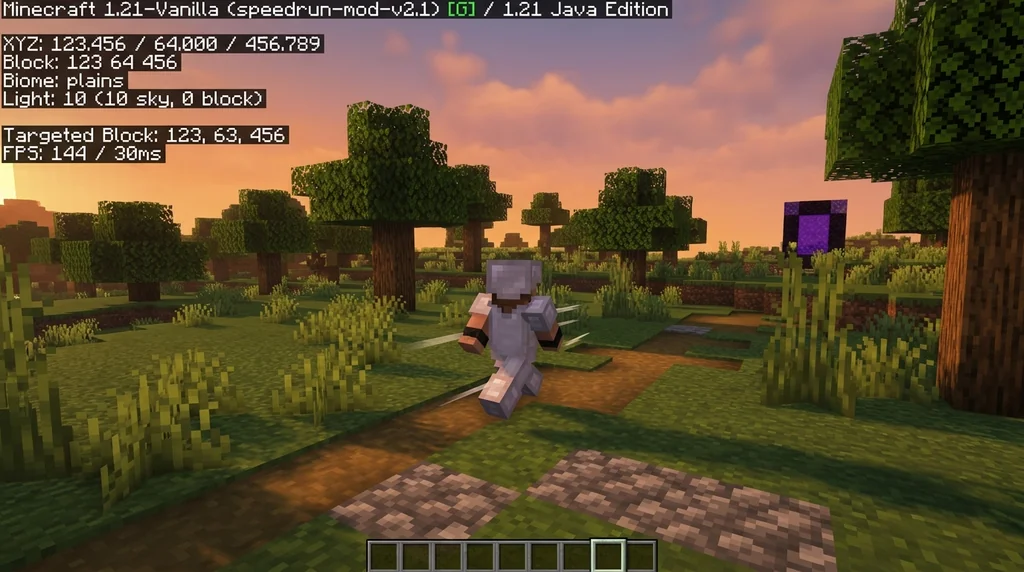
By default, F3 shows a massive amount of information. Many lines are useless for speedrunning. Here's how to trim the fat:
- Disable the pie chart (
F3 + Qby default) — it's a resource hog and not needed during speedruns. - Reduce render distance to 4-6 chunks via F3 + F (cycles through render distances) — improves FPS and reduces screen tear.
- Toggle the debug overlay (
F3 + D) to clear the chat log and reduce clutter. - Use F3 + P to disable auto-pause on lost focus — critical for streaming or alt-tabbing.
A speedrunner's optimized F3 screen should show only: XYZ, biome, light level, targeted block (when needed), and the top-left performance bar (FPS, render distance, memory). Everything else is noise.
For more on configuring your run environment, see our guide on how to use speedrun timers for better splits — timing plus debug data is a powerful combo.
How to Use F3 Coordinates to Navigate Faster
By tracking your coordinates as you move, you can sprint in a straight line toward any destination — no more wandering off course.
Navigation without coordinates is guesswork. With F3, you have a real-time GPS. Here's how to use it:
Straight-line paths
- Run toward higher X or Z: Keep one coordinate fixed (e.g., Z unchanged) while increasing X to move perfectly east.
- Diagonals: Adjust both X and Z simultaneously using the debug screen as a reference. With practice, you can run directly toward a village at 45 degrees without changing course.
- Nether portal linking: When you step into a nether portal in the overworld, divide your overworld X and Z by 8 to find where you'll appear in the nether. Use F3 to check the nether coordinates and adjust accordingly.
Finding structures
The debug screen doesn't directly show structures, but it shows biome. For example, if you're trying to find a desert temple, you need a desert biome. The biome field tells you when you've entered the right territory. Combined with coordinates, you can systematically grid-search chunks.
Note: The 'Targeted Block' line (visible when you look at a block) shows sub-block precision down to 1/16 of a block, which is perfect for placing end portal frames or beds exactly where you need them.
Inventory management during a run is just as critical. Learn 7 inventory management tips to speed up your Minecraft speedruns to keep hotbar clean while navigating.
Why Does FOV and Render Distance Affect Speedrun Performance?
Higher FOV (90-110 Quake Pro) gives you wider peripheral vision to spot landmarks and mobs, while lower render distance (4-6 chunks) boosts FPS for smoother movement.
Setting the right FOV is a personal preference, but most top speedrunners play between 90 and 110. Quake Pro FOV (which goes up to 120+) can distort distances, making block placement trickier. Find the sweet spot that balances awareness with accuracy.
Render distance directly impacts performance. Reducing render distance from 12 to 4 chunks can boost FPS by over 30% in most setups, giving you a smoother run (via Minecraft Wiki). Lower render distance also means fewer entity updates, which reduces lag spikes. However, too low (2 chunks) can make terrain pop-in disorienting. 4-6 chunks is the speedrunning sweet spot.
Check our comparison of best Minecraft speedrun version in 2026 to see which game version performs best with these settings.
Tips for Using F3 to Find Structures and Portals
Using the debug screen's biome and coordinate data, you can systematically search for structures like villages, nether fortresses, and strongholds faster than relying on random exploration.
Structure finding is one of the most time-consuming parts of a speedrun. Here are specific F3 techniques to speed it up:
- Village detection: When running through a plains biome, keep an eye on the biome field. If it suddenly changes to desert or taiga, you've entered a new region where a village might generate. Use coordinates to grid-search.
- Nether fortress: In the nether, the fortress typically generates along z-axis aligned strips. Use F3 to note your Z coordinate and run north-south at that Z until you spot the fortress. Check light levels: nether fortresses have lower light levels due to roof blocks, which can show on F3 light reading.
- Stronghold eyes: Throw eyes of ender and turn on F3. Read the direction you're facing (shown as 'Facing' in F3 but that's only in newer versions? Actually in 1.16.1, you can use F3 + C to copy coordinates and calculate direction manually, but easier: use the debug screen's targeted block to see which block you're looking at when the eye descends, then note coordinates.
For portal linking, use coordinates to ensure one-way travel. If you enter a portal at X=100, Z=100 in overworld, you should appear at X=12.5, Z=12.5 in the nether (divide by 8). Use F3 in the nether to confirm you're close. Build the portal at the rounded coordinates (13, 13) and it will link perfectly.
For deeper strategy, read our guide on how to submit a Minecraft speedrun to the leaderboards so you know the rules around portal linking verification.
How to Put This Into Practice on Gaia Legends
Now that you know how to wield the F3 debug screen like a pro, it's time to apply these skills in a real multiplayer environment. Gaia Legends is a friendly Minecraft SMP server where you can practice speedrun techniques on custom maps and even compete in community speedrun events.
Our server features:
- Custom speedrun challenges with checkpoints and leaderboards for practice runs.
- Hidden portal networks that reward players who can use coordinate linking to discover shortcuts.
- Weekly speedrun showdowns where you can pit your F3 navigation skills against other players.
Gaia Legends is free to join, non-pay-to-win, and supports Java + Bedrock crossplay. Whether you're honing your F3 reading or competing for top splits, our community welcomes speedrunners of all levels. Join at gaialegends.pro and start your legend today.
Conclusion
Mastering the F3 debug screen is one of the highest-leverage skills you can develop as a Minecraft speedrunner. Here's what to remember:
- Focus on key metrics: Coordinates, biome, light level, and eye height are your main tools — ignore the rest of the debug clutter.
- Optimize your settings: Lower render distance to 4-6 chunks, disable the pie chart, and set a comfortable FOV (90-110).
- Practice navigation: Use coordinates to run straight lines, link portals with math, and search structures systematically.
Start your next run with F3 open from the first second. You'll be amazed how much time you can save when every block is measured.
Frequently Asked Questions
How do I use the F3 debug screen for a Minecraft speedrun?
Press F3 to open the debug overlay. Key fields are XYZ coordinates (for navigation), biome (for structure location), light level (for mob safety), and E value (eye height for precision). Customize what's visible using F3 + other keys to reduce clutter and boost performance.
What is the best render distance for speedrunning in F3?
The best render distance for speedrunning is 4-6 chunks. This reduces entity updates and improves FPS by over 30% compared to 12 chunks, while still giving enough visual context to avoid terrain pop-in disorientation.
Can I use the F3 screen to find strongholds faster?
Yes, the biome field helps you stay in the right biome where strongholds generate (typically under villages). Use coordinates to grid-search efficiently and the targeted block line to confirm block IDs of stone bricks or mossy cobblestone.
How do I link nether portals using F3 coordinates?
Divide your overworld X and Z coordinates by 8 to get the nether arrival coordinates. Enter the nether, open F3, and build your portal at those divided coordinates (rounded to nearest integer). This guarantees a perfect one-way link.
What does the 'E' value mean on the F3 screen?
'E' stands for eye height — the Y-level of your character's eyes. It's essential for pearl throwing calculations (to know if you'll hit a block or a gap) and for determining fall damage distances.
Do I need mods to use F3 effectively in speedruns?
No, the vanilla F3 screen provides all the needed metrics for speedrunning. However, some speedrun clients like Lunar Client or Badlion offer enhanced visuals like coordinate HUD without full debug clutter. Always verify that any mods are legal on your leaderboard of choice.
Recommended
- How to Unlock Set Bonuses on Custom Items in Minecraft 2026
- How to Use the 60-30-10 Rule for Balanced Minecraft Builds (2026)
- What is the Michael Reeves Minecraft Modpack? (2026 Guide)
- How to Use the Minecraft Trading Wiki to Maximize Villager Deals in 2026
Ready to play? Join Gaia Legends today — no pay-to-win, Java + Bedrock crossplay.
- Java:
join.gaialegends.pro - Bedrock:
join.gaialegends.pro— Port19132
Further reading
These references were recorded with the article; specific claims have not been matched to source excerpts.
Frequently Asked Questions
How do I use the F3 debug screen for a Minecraft speedrun?
Press F3 to open the debug overlay. Key fields are XYZ coordinates (for navigation), biome (for structure location), light level (for mob safety), and E value (eye height for precision). Customize what's visible using F3 + other keys to reduce clutter and boost performance.
What is the best render distance for speedrunning in F3?
The best render distance for speedrunning is 4-6 chunks. This reduces entity updates and improves FPS by over 30% compared to 12 chunks, while still giving enough visual context to avoid terrain pop-in disorientation.
Can I use the F3 screen to find strongholds faster?
Yes, the biome field helps you stay in the right biome where strongholds generate (typically under villages). Use coordinates to grid-search efficiently and the targeted block line to confirm block IDs of stone bricks or mossy cobblestone.
How do I link nether portals using F3 coordinates?
Divide your overworld X and Z coordinates by 8 to get the nether arrival coordinates. Enter the nether, open F3, and build your portal at those divided coordinates (rounded to nearest integer). This guarantees a perfect one-way link.
What does the 'E' value mean on the F3 screen?
'E' stands for eye height — the Y-level of your character's eyes. It's essential for pearl throwing calculations (to know if you'll hit a block or a gap) and for determining fall damage distances.
Do I need mods to use F3 effectively in speedruns?
No, the vanilla F3 screen provides all the needed metrics for speedrunning. However, some speedrun clients like Lunar Client or Badlion offer enhanced visuals like coordinate HUD without full debug clutter. Always verify that any mods are legal on your leaderboard of choice.
Related guides
How to Speedrun All Bosses in Minecraft: The Ultimate 2026 Guide
Master the Minecraft all bosses speedrun in 2026 with our complete guide. Learn routing, boss strategies, inventory tips, and the fastest ways to beat the...
How to Analyze Speedruns to Improve Your Minecraft Runs (2026)
Learn how to analyze Minecraft speedruns with split timing, VOD review, and route optimization. Improve your run time with these expert techniques for 2026.
How to Use Villager Trading to Speed Up Your Minecraft Speedruns (2026)
Master villager trading to speed up Minecraft speedruns in 2026. Learn the best trades, fast emerald farms, and pro strategies for All Advancements and...
How to Submit a Minecraft Speedrun to the Leaderboards (2026)
Learn exactly how to submit a Minecraft speedrun to the leaderboards in 2026. Covers speedrun.com rules, verification process, required evidence, and...
Have a question or another approach?
Compare notes with other readers. Include your edition and version when discussing mechanics.