Understanding OP roles in Minecraft: server success guide
Filed under Minecraft Tips & Tricks · How we create content
TL;DR:
- Proper understanding and tiered setup of OP roles are essential for server safety and community engagement.
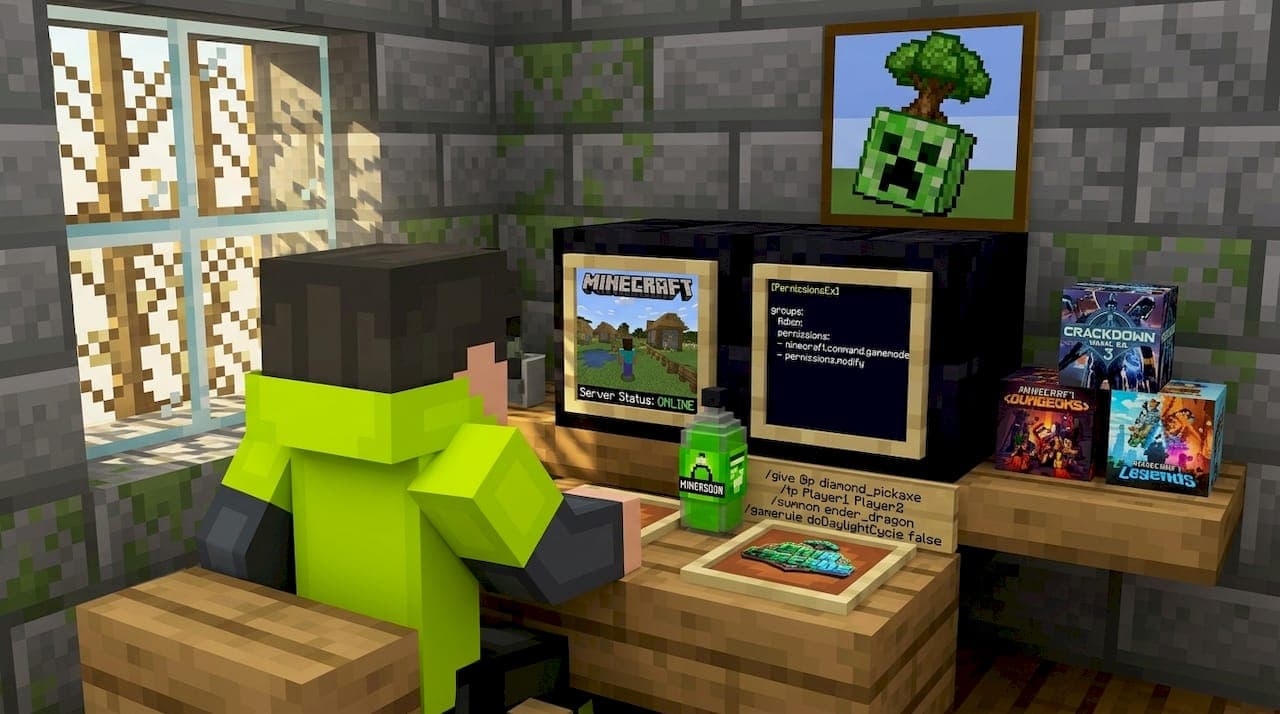
Running a Minecraft server without understanding OP roles is like handing out keys to your house without knowing which doors they open. A lot of players assume "OP" just means someone has admin powers and can do whatever they want, but that picture is way too simple. The OP (operator) system is a layered permission structure that directly shapes how safe, fair, and fun your server becomes. Get it right, and your server thrives with engaged players. Get it wrong, and you're looking at griefing, chaos, and burned-out staff. This guide breaks it all down clearly.
Table of Contents
- What does OP mean in Minecraft?
- OP levels and permissions: Java vs. Bedrock Edition
- How OPs manage Minecraft servers
- Best practices for assigning and managing OPs
- The overlooked truth about OP roles in Minecraft
- Take your server management further
- Frequently asked questions
Key Takeaways
| Point | Details |
|---|---|
| OP means operator, not admin | Operators have special command access but may differ from full administrator powers. |
| Permission systems vary | Java and Bedrock Editions use different OP levels and permission formats. |
| Management is ongoing | Regularly review and adjust OP roles to keep your server safe and engaging. |
| Trust and teamwork matter | Good OPs are built on communication, mutual respect, and clear responsibilities. |
What does OP mean in Minecraft?
"OP" stands for Operator, and it refers to any player who has been granted elevated permissions to manage and control a server. Think of it like the difference between a regular employee and a shift manager. Both can do the job, but the manager has access to tools and decisions that others don't.
Here's what OPs can typically do on most servers:
- Execute game commands like "/gamemode
,/tp,/kill, and/weather` - Kick, ban, or mute players who break the rules
- Manage world settings such as difficulty, time, and mob spawning
- Access and modify server configuration files depending on their level
- Bypass certain gameplay restrictions like spawn protection
The biggest misconception we see is that "OP" automatically means full control over everything. That's not true. The OP system is tiered, meaning you can give a player just enough access to do their job without handing them the keys to the entire server. This distinction matters a lot when you're trying to build a thriving Minecraft community where different staff members handle different responsibilities.
"OP is not a single switch you flip on. It's a graduated system of trust and access that should match the responsibility you give each staff member."
The default OP permission level is controlled by the op-permission-level setting in server.properties, and it defaults to 4, which is the highest level. That means if you just run /op playername without configuring anything, that player gets full operator access immediately. For small private servers with close friends, that's usually fine. For public or semi-public servers, that's a real security concern worth addressing from day one.
Understanding permission levels is not optional. It is the foundation of every good server setup, and skipping this step is one of the most common mistakes new server owners make.
OP levels and permissions: Java vs. Bedrock Edition
The OP system works differently depending on which version of Minecraft you're running, and knowing those differences helps you configure your server correctly from the start.
Java Edition OP levels
Java Edition uses a numbered scale from 1 to 4, where each level adds more command access:
- Level 1 allows bypassing spawn protection. That's the protected area around the world spawn point. Nothing more.
- Level 2 unlocks most common commands like
/gamemode,/tp,/time,/weather, and the ability to use command blocks. This is a good baseline for trusted moderators. - Level 3 adds access to
/kick,/ban,/op, and/deop. This level can manage other players and even grant OP status, so assign it carefully. - Level 4 is the highest tier. It gives access to
/stop(shutting down the server),/save-all, and all remaining server commands. This should be reserved for senior admins and the server owner.
The ops.json file in Java Edition stores each OP as an object containing their UUID, display name, permission level (1 through 4), and a bypassesPlayerLimit boolean that lets them join even when the server is full.
Bedrock Edition permission structure
Bedrock uses a category-based system rather than numbered levels. The Bedrock permission categories are:
- Visitor (0): Can join and look around but cannot interact with the world.
- Member (1): Standard player, can build, mine, and play normally.
- Operator (2): Can use commands, teleport, and manage other players.
- Custom (3): A flexible category managed through
/permissionorpermissions.jsonon dedicated servers.
The /op command in Bedrock assigns a player to the Operator tier, but for fine-grained control on a dedicated server, you'll manage things through the permissions.json file or the /permission command.
Side-by-side comparison
| Feature | Java Edition | Bedrock Edition |
|---|---|---|
| Permission system | Numbered levels 1 to 4 | Category-based (Visitor, Member, Operator, Custom) |
| Config file | ops.json | permissions.json |
| Granularity | High (level per player) | Moderate (category-based) |
| Command to assign OP | /op playername | /op playername |
| Fine control method | ops.json editing | /permission or permissions.json |
| Plugin support | Extensive (Paper, Spigot) | Limited (Add-ons, Bedrock-native) |
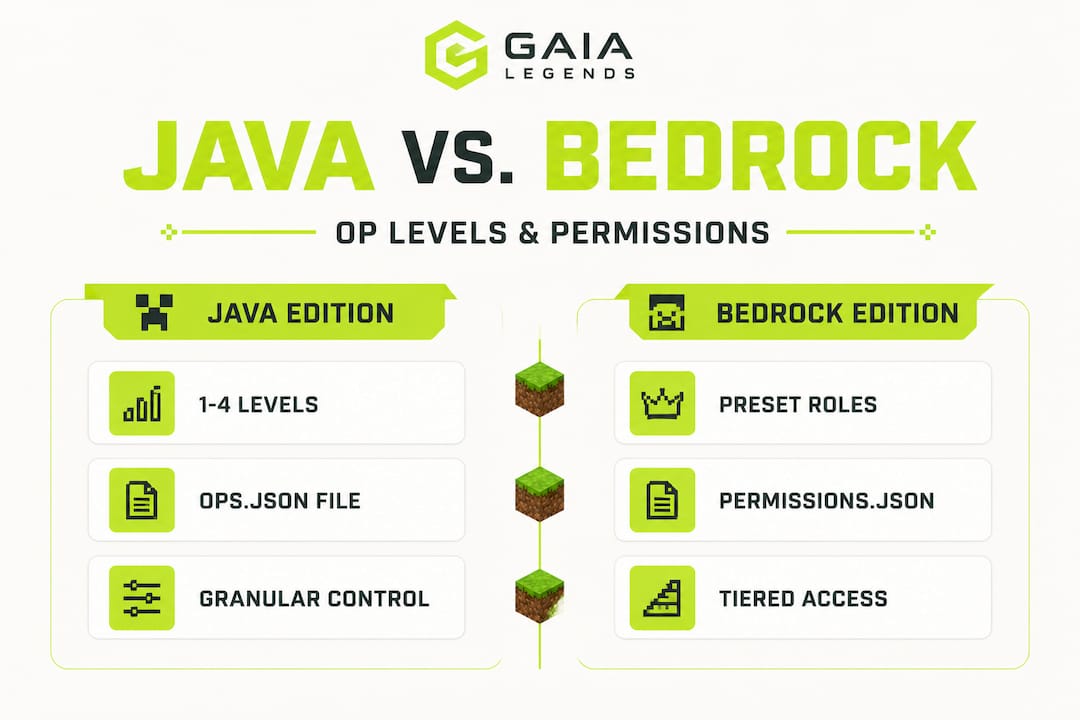
Once you understand how permissions differ by edition, the way you administer your server and assign OPs will follow clear logic.
Pro Tip: If you're running a large public Java server, vanilla OP levels alone won't give you the control you need. Consider switching to a permissions plugin like LuckPerms on a modded Minecraft server hosting platform. These plugins let you assign individual permissions to each player or group, far beyond what the four OP levels allow.
How OPs manage Minecraft servers
Knowing the permission levels is one thing. Understanding what OPs actually do with those permissions every day is what separates a functional server from a truly great one.

OPs wear a lot of hats. On a typical active server, a moderator-level OP might spend their session watching chat for toxic behavior, responding to player reports, and helping lost newcomers find their footing. A senior admin-level OP might be handling server backups, installing plugin updates, or configuring new Minecraft server event ideas to keep the community engaged.
Here's a breakdown of the core responsibilities most OPs handle:
- Community moderation: Monitoring chat, issuing warnings, muting disruptive players, and banning repeat offenders using commands like
/ban,/mute, and/kick - Technical operations: Running scheduled backups, monitoring server TPS (ticks per second, the measure of server performance), restarting the server during lag spikes
- Whitelist management: Reviewing applications, adding approved players with
/whitelist add, and removing banned accounts - Plugin and world management: Installing, updating, and configuring plugins; resetting resource worlds; managing world borders
- Event organizing: Setting up PvP tournaments, treasure hunts, build competitions, and other activities that drive player engagement
- Player support: Helping players with item restoration after bugs, responding to grief reports, and resolving disputes fairly
The Java and Bedrock OP systems are not identical in how they handle these responsibilities. On Bedrock, you'll find fewer plugin options, which means many tasks require more manual work or creative use of behavior packs. Java gives you a much richer plugin ecosystem to automate and streamline OP tasks.
Common OP tasks and example commands
| Responsibility | Example command or action |
|---|---|
| Ban a player | /ban playername reason |
| Teleport to a player | /tp yourname playername |
| Change game mode | /gamemode survival playername |
| Set world time | /time set day |
| Check TPS | /tps (via plugin like EssentialsX) |
| Add to whitelist | /whitelist add playername |
| Reload server plugins | /reload confirm |
| Set player spawn | /spawnpoint playername |
Understanding server progression also plays a role here. On RPG or leveling servers, OPs often help players troubleshoot issues related to server leveling and prestige systems, which adds another layer of technical knowledge to the job.
Best practices for assigning and managing OPs
Knowing how to assign OP status is just as important as knowing who to assign it to. A well-run server treats OP assignment like a formal process, not a casual favor.
How to select the right OPs
Before you ever run an /op command, think carefully about who you're choosing. The best OPs share three core traits: trustworthiness, consistent activity, and strong communication skills. Trustworthiness means they won't abuse commands or share server access with others. Activity means they're actually online and available when players need help. Communication means they can de-escalate conflicts, explain rules clearly, and work as part of a team.
It helps to observe candidates over several weeks before promoting them. Watch how they interact with other players, how they handle disagreements, and whether they follow your server rules even when no one is watching.
Step-by-step guide to assigning OPs
- Decide on the appropriate level. For a new moderator, start at Level 2 in Java Edition (or Member-to-Operator in Bedrock). Reserve Level 3 and 4 for proven senior staff.
- Log into your server console or use RCON (Remote Control, a tool for managing the server remotely) to run the command securely.
- Run
/op playernamein the console or in-game as an existing Level 3+ OP. - Edit ops.json directly if you need to assign a specific non-default level. Change the
"level"value to 1, 2, or 3 as needed. - Communicate the role to the new OP in writing, including their specific duties, rules of conduct, and any limits on their permissions.
- Review their actions during the first two weeks with server logs to confirm they're using commands appropriately.
The ops.json configuration stores each operator's UUID, name, level, and whether they can bypass the player limit. Editing this file directly gives you precise control that the /op command alone doesn't offer.
Reviewing and rotating OP permissions
A permission review cycle every 60 to 90 days keeps your team sharp and your server secure. During these reviews, ask yourself whether each OP is still active, whether their current level matches their actual role, and whether anyone has developed habits that warrant a warning or demotion.
Don't treat OP status as a permanent reward. It's a functional role. If someone becomes inactive, reduce their permissions until they return. If someone has consistently handled moderator-level tasks well, consider promoting them to a higher level with added responsibility.
Stat callout: The default OP permission level in server.properties is set to 4, meaning any new OP granted via /op immediately receives full server control. Lowering this default to 2 for your server means new OPs won't accidentally have access to server-stopping commands until you explicitly trust them with that power.
Pro Tip: Apply the principle of least privilege. Grant each OP only the permissions they need to do their specific job. A chat moderator doesn't need the ability to run /stop. A builder helper doesn't need ban power. Keeping access minimal reduces the blast radius if something goes wrong. This principle also helps you avoid pay-to-win practices by ensuring that staff privileges are tied to responsibility, not payments or favoritism.
By following these best practices, you'll maintain a strong, enjoyable community. But there's still one piece that most guides overlook entirely.
The overlooked truth about OP roles in Minecraft
We've managed a 200-player SMP server, and here's what nobody talks about in the permission guides and command references: OP burnout is real, and it kills servers faster than any griefer ever could.
Most guides spend all their time on commands, JSON files, and permission levels. That's necessary. But the bigger challenge is that OP staff are human beings who volunteer their time, often without much recognition, to keep a digital world running smoothly. When those people feel undervalued, overworked, or stuck in conflict with each other, they leave. When your best moderators leave, your community feels it immediately.
A few things we've learned the hard way:
Hold regular check-ins with your staff. Even a short voice chat once a week keeps morale high and catches problems before they become crises. OPs who feel heard are OPs who stick around.
Build backup plans for every critical role. If one person handles all your server backups and they suddenly stop logging in, you're vulnerable. Cross-train your team so no single OP holds indispensable knowledge.
Recognize your staff publicly. A shoutout in Discord, a special in-game title, or even just a "great work this week" message goes further than most server owners realize. People don't stay for commands. They stay because they feel valued.
Allow flexibility as the server evolves. The OP who was perfect for a 20-player survival world might not be the right fit for a 200-player RPG server. Roles should evolve as your community grows. That kind of flexibility is part of what makes understanding Minecraft SMP server dynamics so valuable for any server owner thinking long-term.
The uncomfortable truth is that technical knowledge gets you to the starting line. Trust, communication, and genuine respect for your team are what keep the server alive for years. That's the side of OP management that rarely makes it into a wiki entry.
Take your server management further
Running a well-organized server means more than knowing which commands to type. It means making informed decisions every day about your community, your staff, and the experience you want players to have. The good news? You don't have to figure all of this out alone.

At Gaia Legends Blog, we publish detailed, experience-backed guides specifically for server operators and dedicated players who want real answers, not surface-level advice. From setting up permissions correctly to organizing events that players remember for months, our Minecraft server management resources cover the full picture. Whether you're starting your first server or upgrading an established community, these guides give you the frameworks, commands, and community strategies that actually work. Informed OPs create the best player experiences. That's the whole idea.
Frequently asked questions
What is the difference between OP and admin in Minecraft?
OP is a specific in-game role that grants a player elevated command access within Minecraft's permission system. Admin is a broader, informal term that often refers to anyone with high-level authority over a server, including non-game technical access like hosting control panels.
How do you add or remove an OP in Minecraft?
Use /op playername to add and /deop playername to remove in-game, or manually edit the ops.json file in Java Edition (which stores each OP's UUID, name, level from 1 to 4, and bypassesPlayerLimit value) or the permissions.json file in Bedrock Edition.
What are the risks of giving someone OP status?
High OP levels grant broad power over your server, including the ability to ban players, access restricted commands, and modify world settings. Since the default OP level is typically set to 4 in server.properties, an untrusted or careless OP can cause serious damage quickly.
Can OP permissions be customized beyond defaults?
Yes, especially on large Java servers. Using permission plugins or mods like LuckPerms, you can define exactly which commands each player or group can access, going far beyond the four vanilla OP levels that Java Edition provides out of the box.
Recommended
Related guides
How to Obtain Mending in Minecraft
Learn how to get Mending in Minecraft. Discover the best methods: trading with librarian villagers, fishing, and looting chests. Includes mechanics and...
How to Use the Trident in Minecraft: Riptide, Channeling & Impaling
Learn how to use the trident in Minecraft with our quick reference guide. Covers Riptide, Channeling, Impaling enchantments, throwing mechanics, and...
How to Find Buried Treasure in Minecraft 2026: Maps & Tips
Master how to find buried treasure in Minecraft with our 2026 guide. Find treasure maps in shipwrecks & ruins, follow the X, and collect rare loot like...
Minecraft Combat Tips That Win Every Fight in 2026
Master Minecraft combat tips to dominate every fight in 2026! Learn essential strategies for weapons, timing, and terrain to become unbeatable.
Have a question or another approach?
Compare notes with other readers. Include your edition and version when discussing mechanics.