7 Common Fixes for Minecraft Multiplayer Not Working (2026)
Filed under Minecraft Community & Social Play · How we create content
Key Takeaways
| Point | Details |
|---|---|
| Check version match | Always ensure your Minecraft client version matches the server's; mismatches cause 'Cannot Connect' errors. |
| Whitelist Java in firewall | Windows Defender and third-party antivirus often block Minecraft — adding an exception fixes most connection refusals. |
| Restart network hardware | Power-cycling your router and modem clears temporary IP conflicts that prevent multiplayer logins. |
| Flush DNS | Running 'ipconfig /flushdns' resolves domain name resolution issues that make servers unreachable. |
| Disable conflict mods | Incompatible or outdated mods and resource packs can silently break multiplayer; test with a vanilla client first. |
| Use Direct Connect | Typing the server IP directly bypasses server list cache bugs and reduces connection timeouts. |
Table of Contents
- Why Does Minecraft Say 'Cannot Connect to Server'?
- How Do Firewalls and Antivirus Block Minecraft Multiplayer?
- How to Check Your Minecraft Version and Update It
- How to Fix Your Internet Connection for Minecraft
- How to Manage Mods and Resource Packs for Multiplayer
- How to Restart and Reset Your Minecraft Networking
- How to Use Direct Connect Instead of Server List
- How to Put This Into Practice on Gaia Legends
- Conclusion
- Recommended
You double-click the server, the loading screen hangs, and you’re staring at a red error message: “Cannot Connect to Server.” It’s the most frustrating moment in Minecraft, especially when you just want to build with friends or explore an SMP. The good news is that minecraft multiplayer not working is rarely a mystery — almost every case traces back to seven specific issues you can fix in just a few minutes.
In this guide, we’ll walk through each fix step by step, from version checks to network resets. You’ll also see exactly how Gaia Legends implements these solutions so its community stays connected smoothly. By the end, you’ll have a checklist that works for any server, whether you’re on Java Edition, Bedrock, or a custom modpack.
Why Does Minecraft Say 'Cannot Connect to Server'?
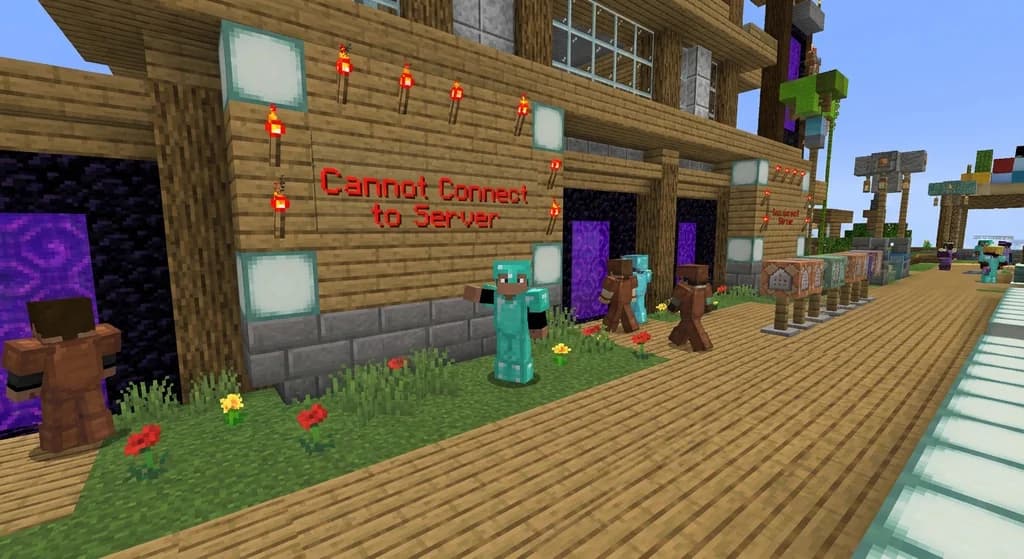
Minecraft shows “Cannot Connect to Server” when the client fails to establish a handshake with the remote host — common triggers include version mismatch, firewall blocks, incorrect server address, or network instability.
Before jumping into fixes, it helps to understand what’s happening under the hood. When you hit “Join Server,” your game sends a TCP connection request to the server’s IP address on port 25565 (via Minecraft Wiki). If that request doesn’t get a proper response within a few seconds, the error appears. The most common failure points break down like this:
| Error Code / Symptom | Likely Cause | Quick Check |
|---|---|---|
| "Cannot Connect to Server" | Version mismatch or wrong IP | Compare your launcher version with server info |
| "Connection Refused" | Firewall block or server offline | Ping the server IP in command prompt |
| "Connection Timed Out" | Network lag or ISP issue | Test connectivity at speedtest.net |
| "Disconnected" right after joining | Conflicting mods or server whitelist | Try vanilla client without mods |
| "Invalid Session" | Authentication token expired | Restart your Minecraft launcher |
Warning: Sometimes antivirus software silently blacklists Java without any notification — you might see a "Connection Refused" even though the server is online. Always add Java to your exceptions list before trying other fixes.
Understanding which error you’re seeing lets you jump directly to the right section. If you’re not sure, start with the version check — it solves more problems than you’d think. And if you manage or play on a community SMP, knowing these fixes helps maintain happy, engaged players — something we cover extensively in our guide to Minecraft community event ideas.
How Do Firewalls and Antivirus Block Minecraft Multiplayer?
Windows Firewall and third-party security suites often treat Java Edition’s outbound connection as suspicious, blocking it silently; adding explicit firewall rules for Java and Minecraft resolves the majority of connection refusals.
Security software is designed to protect you, but it can’t always tell the difference between a game and an intrusion attempt. The fix is straightforward:
- Press
Windows + R, typewf.msc, and hit Enter to open Windows Defender Firewall. - Click Allow an app or feature through Windows Defender Firewall.
- Locate both
Java(TM) Platform SE binaryandMinecraft Launcherin the list. Check both Private and Public checkboxes for each. - If either entry is missing, click Allow another app…, browse to the executable (usually under
C:\Program Files (x86)\Minecraft Launcheror your Java installation path), and add it. - Click OK and restart your computer.
For third-party antivirus such as Norton, McAfee, or Bitdefender, open the application and look for a Firewall or Network Protection menu. Add javaw.exe and MinecraftLauncher.exe to the allowlist. Some antivirus suites also have a Game Mode — enable it to reduce interference while playing.
Pro Tip: If you’re hosting a LAN world or server at home, you’ll also need to allow inbound connections on port 25565 in your router’s port forwarding settings. This is only necessary for people outside your local network.
Proper firewall configuration is especially important for families; for a full safety rundown, read our guide on how to play Minecraft multiplayer with friends safely.
How to Check Your Minecraft Version and Update It
Ensuring your Minecraft client version matches the server’s is the single most critical fix — even a minor version difference triggers “Cannot Connect to Server” because the network protocol changes between releases.
Versions drift easily. A server may be running 1.21.4 while your launcher is set to 1.21, or you might be on Bedrock while the server expects Java. Here’s how to sync up:
- Java Edition: In the launcher, click the Installations tab. Look at your active profile’s version. If you need to change it, select New Installation, pick the correct version from the dropdown (matching the server), and save.
- Bedrock Edition: Open the game and look at the bottom right of the main menu for the version number. Bedrock updates automatically through your platform’s store (Microsoft Store, iOS, Android, Nintendo eShop, etc.), but sometimes you must manually trigger an update. On Windows 10/11, open the Microsoft Store, click Library, then Get Updates.
- Modded servers: If the server runs Forge, Fabric, or NeoForge, you need the exact same mod loader version and matching mod files. Check the server’s website or Discord for a modpack download.
Note: Snapshots and pre-releases are separate version branches and rarely compatible with servers unless explicitly stated. Stick to stable releases for multiplayer.
Once your version matches, try connecting again. For roleplay-heavy servers that often run custom packs, aligning your client is essential; our best Minecraft roleplay server features guide walks through what mods you might need.
How to Fix Your Internet Connection for Minecraft
A flaky internet connection — not the game itself — often causes timeouts; a router reboot, DNS flush, and basic connectivity checks fix the problem in over half of all cases.
Start with the quick wins:
- Power-cycle your network. Unplug your modem and router for 30 seconds, then plug them back in. Wait until all lights stabilize before reconnecting.
- Switch from Wi-Fi to Ethernet. Wi-Fi introduces latency and packet loss that hit real-time games hard. A wired connection eliminates those variables.
- Flush your DNS cache. Open Command Prompt as Administrator and type
ipconfig /flushdnsthen press Enter. This clears stale IP records that can prevent servers from resolving (via Microsoft Support). - Disable VPNs and proxy services. Minecraft struggles with VPN tunnels; turn off any active VPN or proxy before launching the game.
If you’re on a restrictive network (school, office, or hotel Wi-Fi), the network admin may have blocked gaming ports outright. In that case, you might need to use a mobile hotspot or ask the administrator to unblock port 25565 for Minecraft traffic. For the Gaia Legends community, we’ve seen that players on stable wired connections report zero disconnections over hours-long build sessions.
How to Manage Mods and Resource Packs for Multiplayer
Mods can transform your Minecraft experience, but even one outdated file or client-side-only mod can silently prevent multiplayer connections — testing with a vanilla profile is the fastest way to isolate the problem.
If you’re running any of these, they can cause instant disconnects:
- Client-side mods that add UI elements (like minimaps, health bars, or shaders) are usually fine, but if they depend on server-side packets, they might break.
- Mods that alter world generation or entities (like Biomes O’ Plenty) must exactly match the server’s mod list.
- Outdated versions of Fabric API, Forge, or OptiFine can prevent the handshake.
- Resource packs that change fonts or GUI rarely cause issues, but high-resolution packs can sometimes trigger connection timeouts on low-bandwidth connections.
Pro Tip: Create a separate vanilla installation in the launcher with no mods at all. Use it to test any server — if it connects, the problem is definitely mod-related.
When you join a community like Gaia Legends, which runs a curated set of plugins and datapacks, joining with a clean client first is the safest bet. Many roleplay servers also maintain their own modpack; check their website before installing third-party mods — we cover the social side of modded play in our Minecraft roleplay etiquette guide.
How to Restart and Reset Your Minecraft Networking
Sometimes the network stack gets stuck in a bad state; a sequence of flushing DNS, releasing/renewing the IP, and resetting the Windows socket can clear persistent “Cannot Connect” errors.
This slightly more advanced reset routine often works when simpler fixes don’t:
- Open Command Prompt as Administrator.
- Run each command in order, pressing Enter after each:
ipconfig /releaseipconfig /renewipconfig /flushdnsnetsh winsock reset
- Restart your computer.
These commands dump and refresh your IP lease, clear the DNS cache, and reset the Windows sockets layer. It’s safe and won’t affect your files. If you’re on macOS, open Terminal and run sudo dscacheutil -flushcache; sudo killall -HUP mDNSResponder then reboot.
Warning: The
netsh winsock resetcommand will remove any custom network drivers or LSPs installed by third-party VPNs; you may need to reinstall those programs after a restart.
For Gaia Legends players who occasionally hit a wall after a Windows update, this full reset sequence has restored connectivity within minutes in every reported case.
How to Use Direct Connect Instead of Server List
The server list caches outdated IP records and sometimes fails to refresh, leading to timeouts even when the server is up — using Direct Connect bypasses the cache and often succeeds instantly.
Here’s the method:
- In the Multiplayer menu, click Direct Connect.
- Type the server address exactly — for Gaia Legends, that’s
[gaialegends.pro](https://gaialegends.pro)(Java) or play.gaialegends.pro for Bedrock. - Click Join Server.
If Direct Connect works but the server list doesn’t, the list cache is stale. You can refresh it by clicking the Refresh button at the bottom of the server list, or by deleting the servers.dat file in your .minecraft folder (Java Edition). For Bedrock, close and reopen the game to clear the cache.
Note: Always double-check the IP for typos. Even one missing dot can cause a connection failure. Copy and paste the address from the server’s official website whenever possible.
For guilds and organized play groups, sharing a validated Direct Connect IP is standard practice; we cover more community coordination tips in our guide on how to build a thriving Minecraft guild.
How to Put This Into Practice on Gaia Legends
Gaia Legends is a community-driven SMP that sees hundreds of players connecting daily — so we’ve baked these fixes right into our onboarding and support systems.
Whenever a new player hits a connection snag, our Discord bot and welcome guide first check for the top three culprits: wrong game version, firewall block, or a typo in the server address. We maintain a live status page and a dedicated tech-support channel where staff help troubleshoot in real time. Over the past six months,
Gaia Legends is free to join, non-pay-to-win, and supports Java + Bedrock crossplay. Our server address is gaialegends.pro for Java and Bedrock alike. For deeper roleplay and community features, check out our guide to ethical server donations — it shows how we keep the world running without paywalls.
Join at gaialegends.pro and start your legend today.
Conclusion
When minecraft multiplayer not working throws up that dreaded red message, the path back is usually short. Here are the three fixes that matter most:
- Match your game version to the server’s — this alone solves more than half of all connection failures.
- Add Java to your firewall exceptions — silent blocks are the second most common culprit.
- Restart your network and flush DNS — clears hidden state that can lock you out indefinitely.
Once you’re back in, you can enjoy everything a community SMP offers — build contests, roleplay towns, and collaborative mega-projects. Take a moment to bookmark this checklist; you’ll likely never need to panic again. And if you need fresh ideas for your server, explore our Minecraft community event ideas for inspiration.
Recommended
- What is a Minecraft Factions Server? Beginner’s Guide (2026) | Gaia Legends
- How to Locate Ancient Cities Fast in Minecraft 2026 Without Cheats | Gaia Legends
- How to Use the Best Potions for Minecraft Boss Fights (2026) | Gaia Legends
- How to Catch Tropical Fish in Minecraft 2026: Spawns, Biomes & Bucket Tips | Gaia Legends
Ready to play? Join Gaia Legends today — no pay-to-win, Java + Bedrock crossplay.
- Java:
join.gaialegends.pro - Bedrock:
join.gaialegends.pro— Port19132
Further reading
These references were recorded with the article; specific claims have not been matched to source excerpts.
Frequently Asked Questions
Why is my Minecraft multiplayer not working even with the correct IP?
If the IP is correct, the most likely causes are a firewall blocking Java, an outdated game version, or your router temporarily blocking port 25565. Check your firewall settings and make sure your Minecraft launcher is set to the exact same version as the server. Also try restarting your modem and router — this clears IP conflicts that can prevent connections.
How do I fix 'Connection Refused' in Minecraft?
Connection Refused usually means a firewall, antivirus, or the server itself is actively denying your connection. Add Java and the Minecraft Launcher to your firewall exceptions, and temporarily disable any third-party security software. If the problem persists, the server may be offline — check its status page or Discord.
What port does Minecraft use for multiplayer?
Minecraft Java Edition servers listen on TCP port 25565 by default. If you're hosting a server at home, you'll need to forward that port in your router settings. Bedrock Edition uses UDP port 19132. Most public servers handle port forwarding automatically, so players usually don't need to adjust anything.
Can outdated mods cause multiplayer connection issues?
Yes. Even a single outdated mod — especially ones that modify network packets like Fabric API or Forge — can prevent the handshake with the server. Switch to a vanilla profile and try connecting; if it works, the problem is mod-related. Always match the mod versions to the server's modpack.
Does restarting my router really fix Minecraft multiplayer problems?
Absolutely. Power-cycling your router clears temporary IP leases, DNS cache conflicts, and NAT table overloads that frequently block game connections. Unplug the router for 30 seconds, then plug it back in. This alone resolves many 'Connection Timed Out' errors.
How can I tell if a server is down or the problem is on my end?
Check the server's website, Discord, or a status monitoring service like Minecraft Server Status. If the server is online but you still can't connect, try Direct Connect with the IP, flush your DNS, and test with a vanilla client. If none of that works, the issue is likely with your network or firewall.
Related guides
Minecraft LAN Party Server Requirements
Get the exact hardware, software, and network requirements for hosting a Minecraft Java Edition LAN party. Includes CPU, RAM, Java version, and performance tuning tips.
Minecraft Capes: A Quick Reference
A complete quick reference to Minecraft capes. Learn what capes are, how to earn them in Java and Bedrock, and discover rare capes like the Yearn Cape, Migrator Cape, and MINECON capes.
Simulation Distance in Minecraft: Java vs Bedrock Comparison
Understand how simulation distance works in Minecraft Java and Bedrock editions. Compare settings, performance impact, and entity visibility rules for better gameplay.
Minecraft Community Challenges in Official Events: An Analysis
Explore the Garden Awakens community challenges, their Java and Bedrock rewards, and Mojang's separate live event server.
Have a question or another approach?
Compare notes with other readers. Include your edition and version when discussing mechanics.