Minecraft admin commands: the complete guide for server control
Filed under Minecraft Tips & Tricks · How we create content
TL;DR:
- Mastery of admin commands ensures effective control, automation, and creative possibilities on Minecraft servers.
- Core commands like /fill, /clone, and /execute enable large-scale building, event setup, and conditional logic.
- Responsible command use fosters trust, community engagement, and seamless gameplay experiences.
Table of Contents
- Essential tools and prerequisites for admin command mastery
- Step-by-step: Core admin commands every operator should know
- Advanced command techniques and conditional logic
- Troubleshooting and common mistakes with admin commands
- Optimizing server creativity and gameplay with admin commands
- Our take: Why true mastery of admin commands goes beyond syntax
- Level up your server with expert resources
- Frequently asked questions
Key Takeaways
| Point | Details |
|---|---|
| Understand server permissions | You need operator access and the right tools to use admin commands effectively. |
| Master core commands | Commands like /fill, /clone, and /setblock can transform your server workflows and creativity. |
| Know key limitations | Every command—such as /fill and /clone—has critical limits and edge cases you must watch for. |
| Leverage advanced logic | Combine admin commands and conditional logic to create dynamic, engaging server features. |
| Focus on community experience | Mastery is not just about syntax—it's also about fostering player excitement and server growth. |
Essential tools and prerequisites for admin command mastery
Before diving into advanced commands, it's crucial to have the right tools and permissions. Skipping this step is one of the most common reasons server admins end up battling their own server instead of managing it.
Operator status and permission levels
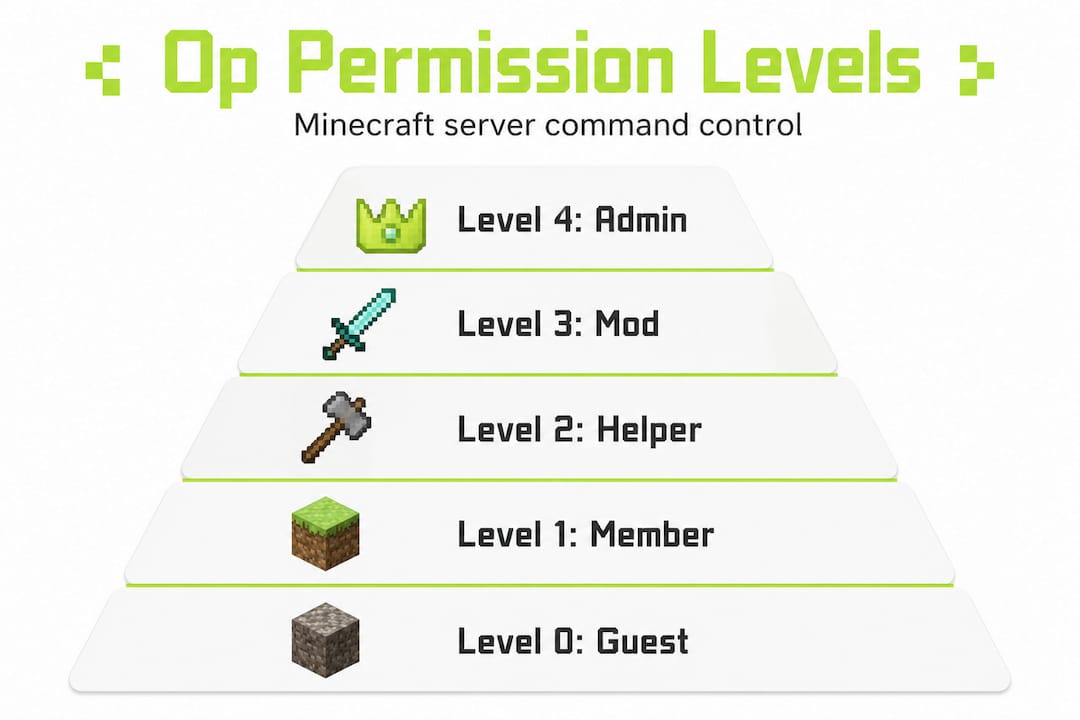
Minecraft uses a tiered operator (op) system with permission levels ranging from 0 to 4. Level 4 is full operator access. You grant it through your server console by typing op <playername>. Without the correct level, most of the commands in this guide simply won't work, and the server will silently ignore your input or throw a generic permission error.
Most servers also run a permissions plugin like LuckPerms alongside vanilla op status. This lets you assign granular control over who can run what. For a deeper look at how to configure everything from scratch, our server setup guide walks through the full process.
Where to enter commands
You have three main places to run commands:
- In-game chat: Type
/followed by the command. Works for players with op status. - Server console: No
/prefix needed. Runs as the server itself, bypassing most permission checks. This is your safest environment for testing big commands. - Command blocks: Placed in the world and triggered by redstone. Ideal for automation, event triggers, and repeating actions without an admin being online.
Each method has its strengths. Console is best for initial setup and high-risk commands. Command blocks shine for ongoing automation. In-game chat is great for quick, on-the-fly adjustments during live sessions.
Understanding syntax basics
Every command follows a predictable structure. Consider this example: /fill x1 y1 z1 x2 y2 z2 block [mode]. Here, the bracketed parts are optional arguments. Arguments in angle brackets like <playername> are required. Getting this wrong is the number one cause of failed commands.
The foundational commands reference covers syntax for every command available, including how target selectors work with modes like replace, destroy, and hollow for advanced building operations.
Target selectors at a glance
Target selectors let you apply commands to specific entities without typing individual names. Here's a quick reference:
| Selector | Targets |
|---|---|
| @p | Nearest player to the command source |
| @a | All players currently online |
| @e | All entities, including mobs and items |
| @s | The entity executing the command itself |
You can also filter selectors further using arguments like [type=zombie] or [name=Steve] to get extremely precise targeting.
Required access and tools
| Tool or access type | What it enables |
|---|---|
| Server console | Full command access without permission restrictions |
| Level 4 operator status | All in-game commands including gamemode, fill, and ban |
| Command block | Automated commands triggered by redstone or always-on |
| RCON client | Remote console access for off-site server management |
Pro Tip: Always test new commands through the server console before deploying them via command blocks. Console shows error messages in real time, which helps you catch syntax mistakes before they affect live players.
Step-by-step: Core admin commands every operator should know
With the necessary tools and permissions in place, let's break down the core admin commands that form the backbone of server control. These are the ones you'll use most often, and understanding their options makes the difference between a functional server and a brilliantly managed one.
/fill: Building and clearing large areas
The /fill command replaces blocks in a defined rectangular region. Its syntax is: /fill x1 y1 z1 x2 y2 z2 <block> [mode].
The available modes change what the command actually does:
- replace (default): Replaces every block in the region with the specified block. Use this for filling empty space or swapping one material for another across a large build.
- destroy: Removes existing blocks and drops them as items before placing the new block. Great for clearing land while giving players the blocks they collected.
- hollow: Fills only the outer shell of the defined region, leaving the inside empty. This is the go-to for quickly building room structures or large containers.
- keep: Only fills air blocks, leaving existing blocks untouched. Useful when you want to add material to open space without disrupting what's already built.
- outline: Similar to hollow, but fills only the outer edges without modifying the interior at all, including interior air.
A real-world example: to clear a 20 by 20 by 10 arena and replace everything with air, you'd use /fill x1 y1 z1 x2 y2 z2 air destroy. This removes all blocks and drops them for any players standing nearby.
/clone: Copying and pasting entire regions
/clone copies a defined region and pastes it to a new location. Its syntax is: /clone x1 y1 z1 x2 y2 z2 destX destY destZ [maskMode] [cloneMode].
This command is a world-building powerhouse. Use it to duplicate arena templates, replicate town structures, or quickly reset event spaces. The advanced gameplay commands article covers creative uses of /clone in depth.

/setblock: Precision single-block placement
/setblock x y z <block> [mode] places a single block at exact coordinates. This is more precise than /fill for targeted changes and is particularly useful in command block automation sequences where one block change triggers a game mechanic.
Command comparison table
| Command | Best use case | Modes available | Risk level |
|---|---|---|---|
| /fill | Mass block changes, clearing areas | replace, destroy, hollow, keep, outline | High (use carefully) |
| /clone | Copying structures, resetting arenas | filtered, masked, forced | Medium |
| /setblock | Single-block precision changes | replace, destroy, keep | Low |
Pro Tip: When you need to remove a large structure fast, /fill with the destroy mode is almost always faster than breaking blocks manually, and it drops all the resources so nothing goes to waste.
Advanced command techniques and conditional logic
Once you're comfortable with the basics, you'll want to unlock even greater possibilities with advanced logic and automation. This is where admin commands start feeling less like tools and more like a programming language for your server world.
Using /execute for conditional commands
/execute is arguably the most powerful command in Minecraft. It lets you run another command only when specific conditions are met. Its modern syntax (post-1.17) looks like this: /execute if block x y z minecraft:stone run say Found stone!.
You can chain multiple conditions together. For example, you could trigger a reward only if a player is standing in a specific zone AND their score in a scoreboard objective is above a threshold. This kind of collaborative server mechanics thinking is what separates a basic server from a fully designed experience.
Common uses for /execute include:
- Detecting when a player steps on a pressure plate in a specific room and triggering a cutscene sequence
- Rewarding players automatically when they reach a score milestone in a minigame
- Checking whether a certain block is present before allowing a door to open (great for puzzle maps)
- Canceling mob spawns in designated safe zones by detecting and removing specific entity types
Command chaining for event automation
Command blocks can be set to chain mode, which means they fire in sequence as long as the previous block succeeded. This lets you build multi-step automated events, like a boss encounter that announces itself, spawns enemies, changes the weather, and then starts a timer, all without a player or admin touching anything.
A typical event chain might look like this:
- Impulse command block:
/title @a title {"text":"Boss Incoming!","color":"red"} - Chain block:
/summon wither 0 100 0 - Chain block:
/weather thunder - Chain block:
/scoreboard objectives add bossTimer dummy
Each block fires immediately after the previous one, creating a seamless automated sequence.
Critical edge cases you must know
Important: The /fill command is hard-limited to 32,768 blocks per operation. If your selected region exceeds this volume, the command will fail completely. Always calculate your region size (length x width x height) before executing.
Other edge cases to keep in mind:
- /clone overlap restriction: The source and destination regions for /clone cannot overlap. If they do, the command throws an error. Plan your paste destination before you clone.
- /execute has a depth limit: Nesting too many
/executecommands can cause lag or unexpected behavior. Keep your chains clean and modular. - /give and NBT on Bedrock: The
/givecommand on Bedrock Edition does not support NBT (Named Binary Tag) data, meaning you can't give custom-named or specially enchanted items the same way you can on Java Edition.
Pro Tip: Set up a dedicated "test world" or flat creative environment on your server where you can safely experiment with complex command sequences before pushing them to the live world. This single habit saves enormous amounts of cleanup time.
Troubleshooting and common mistakes with admin commands
As with any powerful toolset, mistakes can happen. Here's how to spot, prevent, and correct them before they turn into a server-wide emergency.
The most common mistakes
- Syntax errors: A single missing space or wrong bracket causes the entire command to fail. Always double-check the command format before pressing Enter.
- Wrong permission level: Commands that require level 4 access silently fail at lower levels. Verify your op status through the console.
- Coordinate confusion: Mixing absolute and relative coordinates (using
~tilde notation incorrectly) sends commands to completely unintended locations. - Exceeding block limits: As the /fill documentation makes clear, the 32,768 block fill limit is absolute. Attempting to fill a 100 by 100 by 100 volume (1,000,000 blocks) will always fail.
- Overlapping /clone regions: This is a sneaky one. Even a one-block overlap between source and destination causes the command to cancel entirely.
Reading error messages
Minecraft error messages appear in red text in chat or console. Most follow a pattern: they tell you which argument failed and what the expected format was. "Expected integer" means you put a word where a number should be. "Unknown block type" means you spelled the block ID wrong. Take these messages at face value and trace back through your syntax.
Preventing griefing and accidental destruction
This is one of the most important community-building strategies for any server admin. A few guidelines:
- Never grant level 3 or 4 operator status to players you don't completely trust. Even well-meaning players can cause chaos with powerful commands.
- Use WorldGuard or a similar region protection plugin alongside your vanilla commands to create safe zones where /fill and /setblock can't affect player builds.
- Before running any destructive command like
/fill ... air destroy, use/cloneto back up the affected region to a safe location in the world or in a backup world. - Log all operator commands using a plugin like CoreProtect (CoreProtect). This creates an audit trail so you can trace the source of any accidental or intentional damage.
Stat callout: The hard limit of 32,768 blocks per /fill operation means that a fully hollow 50 by 50 by 50 cube (125,000 block volume) would require at least four separate /fill commands to complete. Planning your operations in segments is not optional at this scale. It's essential.
Always communicate major world changes to your player base before executing them. A quick server announcement before running a large-scale fill command prevents panicked messages from players who think something went wrong.
Optimizing server creativity and gameplay with admin commands
Mastery of commands doesn't just solve problems. It creates opportunities for engagement and fun that keep players coming back week after week.
Event automation that wows players
Commands make it possible to run fully automated events with no admin intervention during the event itself. Think treasure hunts where chests are filled and teleportation happens on a timer, or PvP tournaments where arenas reset between rounds automatically. Server event ideas like these are only possible when you know how to chain commands effectively.
Here are some practical creative uses:
- Drop parties: Use
/give @apaired with a command block timer to distribute items to all online players simultaneously during special events. - Dynamic weather events: Trigger
/weather thunderfor a storm event or boss encounter, then automatically revert to/weather clearafter a set time using a chain of command blocks. - Custom mini-game rules: Use scoreboards combined with
/executeconditions to track kills, deaths, or custom objectives in real time without any plugins. - Arena resets: After a PvP round ends, a single /clone command restores the entire arena to its pre-match state in seconds, which would take hours to do manually.
- World-building at scale: The advanced building options in /fill, /clone, and /setblock including modes like replace, destroy, and hollow let you construct massive landscapes, dungeons, and towns in a fraction of the time.
Motivating creativity through custom rulesets
Some of the most memorable server experiences come from creative restrictions enforced through commands. You can use /gamemode adventure combined with specific block permissions to create challenge modes where players can only interact with designated blocks. You can use scoreboards to track crafting milestones and reward players who complete specific progression paths first.
The key insight here is that commands are not just administrative tools. They are game design tools. When you think about them that way, the ceiling for what your server can offer players goes up dramatically.
Our take: Why true mastery of admin commands goes beyond syntax
Here's something most command guides won't tell you: knowing the syntax is the easy part. You can memorize every argument for /execute and still be a mediocre server admin.
The best operators we've encountered, including those running the most vibrant communities on our platform, think about commands primarily in terms of player experience. Before they type a single command, they ask: what does this do to the game feel for everyone online right now? Will this /fill operation disrupt someone's build session? Will this automated event feel seamless or jarring?
This is where real expertise lives. It's not in memorizing that /fill is limited to 32,768 blocks. It's in planning your fill operations so they never interrupt a live server event. It's in using /execute not just because you can, but because you've identified a specific player frustration that conditional logic can fix.
We've also noticed that the admins who grow the strongest communities treat every command as a communication act. Running /give @a diamond 64 during an event isn't just giving items. It's a signal to players that the server cares about making their session special. The command is the tool. The intent behind it is the craft.
The ethical dimension matters too. Admin commands carry real power over other people's experiences. Using /fill carelessly near player builds, or using /kick and /ban without documented reasons, erodes trust fast. The best admins build a community-first culture where players feel safe, heard, and excited to log in. Commands support that culture when used thoughtfully, and undermine it when used recklessly.
Develop the habit of documenting every major command you run on the server, what it did, when you ran it, and why. Over time, this log becomes an invaluable resource for onboarding new admins and troubleshooting unexpected world changes.
Level up your server with expert resources
Now that you have a foundation and a broader perspective on admin command mastery, here are additional resources to keep growing.

Frequently asked questions
What is the maximum area I can fill with the /fill command in Minecraft?
The /fill command is limited to filling 32,768 blocks at a time, so any region larger than that volume will need to be split into multiple separate operations.
Can I use the /clone command to copy and paste overlapping areas?
No. The /clone command requires that your source and destination regions do not overlap at all, even by a single block, or the command will fail.
How do I use target selectors for specific players or mobs?
Target selectors like @p, @a, @e, and @s let you aim commands at the nearest player, all players, all entities, or yourself, and you can filter them further with arguments like [type=zombie] for even more precision.
What can I do if a command doesn't work on my Minecraft Bedrock server?
Java and Bedrock editions have meaningful differences in command support. For example, Bedrock's /give command does not support NBT data, so custom item properties that work on Java Edition will not transfer directly to Bedrock without workarounds.
Recommended
Related guides
How to Find Buried Treasure in Minecraft 2026: Maps & Tips
Master how to find buried treasure in Minecraft with our 2026 guide. Find treasure maps in shipwrecks & ruins, follow the X, and collect rare loot like...
Minecraft Combat Tips That Win Every Fight in 2026
Master Minecraft combat tips to dominate every fight in 2026! Learn essential strategies for weapons, timing, and terrain to become unbeatable.

Minecraft Event Hosting Guide for Every Server Size
Master your next event with our Minecraft event hosting guide! Learn how to engage players, handle lag, and foster community growth.

Minecraft SMP dynamics: master multiplayer server play
Unlock the secrets of Minecraft SMP dynamics! Master multiplayer gameplay, navigate social strategies, and thrive in any server environment.
Have a question or another approach?
Compare notes with other readers. Include your edition and version when discussing mechanics.