How to Customize Minecraft MMORPG HUDs and Action Bars in 2026
Filed under Minecraft MMORPG & RPG Servers · How we create content
Key Takeaways
| Point | Details |
|---|---|
| Pick the right mod | Use mods like Mine and Slash or Custom HUDs to move and resize action bars, party frames, and cooldown trackers. |
| Match layout to role | Tanks should prioritize threat meters and defensive cooldowns; healers need party health frames front and center. |
| Reduce screen clutter | Hide quest trackers, minimaps, and nameplates during boss fights to focus on telegraphs. |
| Save multiple profiles | Create separate HUD layouts for dungeons, world quests, and PvP to switch instantly. |
| Test and iterate | Spend 10 minutes adjusting your action bar after a dungeon run—small changes add up to faster clears. |
Table of Contents
- What Are Minecraft MMORPG HUDs and Action Bars?
- Why Customize Your MMORPG Interface?
- How to Customize Your HUD in Minecraft MMOs
- Best Minecraft RPG Interface Mods for 2026
- How to Set Up MMORPG Action Bars for Dungeons
- Tips for a Clean and Efficient HUD
- How to Put This Into Practice on Gaia Legends
- Frequently Asked Questions
- Recommended
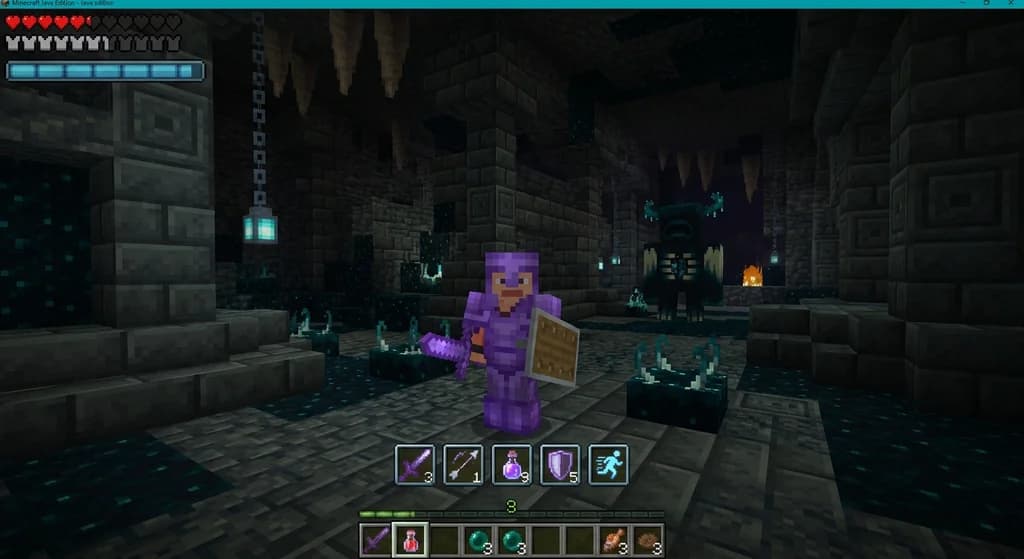
Dungeon runs in Minecraft MMORPGs live or die by your ability to react. A messy action bar or cluttered screen can cost you a boss kill—yet so many players stick with the default interface. Learning how to customize your Minecraft MMORPG HUD and action bars isn’t just cosmetic; it’s a direct skill multiplier. In 2026, the best MMO servers ship with deep interface control, and a few mods unlock even more. This guide walks you through every step: from picking your first mod to fine‑tuning your hotbars for dungeons, raids, and everyday questing.
What Are Minecraft MMORPG HUDs and Action Bars?
Minecraft MMORPG HUDs and action bars are custom interface overlays that display your health, mana, skills, cooldowns, and quest information directly on the screen, replacing the vanilla hotbar for specialized combat.
In vanilla Minecraft, the Heads-Up Display shows a fixed hotbar, health, hunger, and armor. The vanilla hotbar shows 9 item slots (via Minecraft Wiki). MMORPG servers and modpacks build on this by adding class abilities, spell rotations, threat lists, and party frames—all requiring their own interface elements. An action bar in this context is a row of clickable skill icons that trigger spells or attacks, usually bound to keyboard shortcuts. The HUD includes everything layered on the screen: health and mana orbs, compass minimap, boss timers, and quest trackers.
Without customization, these elements often overlap, hide the boss’s telegraphs, or push important buffs off‑screen. A well‑tuned MMORPG interface puts exactly what you need where you need it.
Why Customize Your MMORPG Interface?
Customizing your MMORPG interface reduces ability fumbling, speeds up reaction times, and lets you focus on fight mechanics instead of hunting for the right key.
Default layouts are built for the average player—not for your specific class or playstyle. By rearranging action bars, resizing party frames, and filtering out unused UI elements, you gain two clear advantages:
- Faster ability execution: Placing your core rotation on keys 1‑4 cuts the time your fingers travel, making your spell sequences flow smoothly.
- Less screen clutter: Hiding quest panels, damage floaters, and non‑essential nameplates during boss fights reveals positional dangers that would otherwise be buried.
These changes compound. A tank who can see threat meters at a glance holds aggro better. A healer with party frames centered near the action reacts to damage spikes half a second faster. When you’re pushing high‑level dungeons, half a second is the difference between a wipe and a clear. The modding community agrees—customization mods are among the most downloaded in the category. For example, Custom HUDs, a mod dedicated to rearranging HUD elements, has over 500,000 downloads on Modrinth (via Modrinth).
Pro Tip: If you also struggle with a messy inventory, organizing your MMORPG inventory works hand‑in‑hand with a clean HUD.
How to Customize Your HUD in Minecraft MMOs
Customize your HUD by installing an MMORPG interface mod, opening its configuration menu (usually bound to a key like R or O), and dragging elements to preferred positions while adjusting transparency and scale.
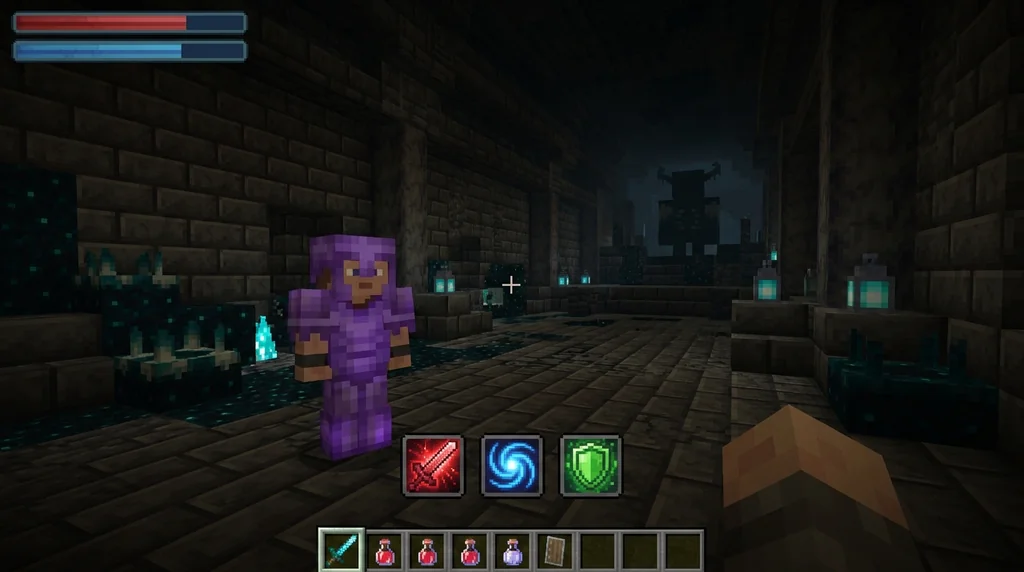
Step 1: Install a HUD/Interface Mod
Not all MMORPG mod packs come with full HUD control built in. The easiest way to gain control is to add a dedicated interface mod. Look for mods that support draggable frames, saveable profiles, and conflict‑free integration with your server’s existing UI.
Step 2: Open the Configuration Panel
Once installed, log in and press the mod’s config key (commonly O or R). This opens an overlay where every HUD element is shown as a movable rectangle. You can typically click and drag each element, change its scale with the mouse wheel, and toggle visibility.
Note: Some MMORPG servers, including Gaia Legends, lock certain HUD elements to prevent unfair advantages. Always check server rules before modifying combat‑critical overlays.
Step 3: Reposition Essential Elements
Start with these four:
- Action bar: move it slightly upward to make room for boss ground markers.
- Party/Raid frames: drag them closer to center‑right, where your eyes naturally rest.
- Health and mana orbs: place them next to your character, not in the far corner.
- Quest tracker: shrink it and push it to the far right or hide it during combat.
Step 4: Save and Test
Most mods let you save multiple profiles. Name one “Dungeon,” another “Questing,” and a third “PvP.” After each adjustment, run a quick dungeon—did you miss any important information? Tweak and test until the interface feels invisible.
Best Minecraft RPG Interface Mods for 2026
The best RPG interface mods for 2026 include Mine and Slash, Better Questing, and Custom HUDs, each offering unique action bar layouts, party frames, and boss timers.
The table below compares the top interface mods that every MMORPG player should consider. Data reflects download counts as of mid‑2026.
| Mod Name | Key Feature | Download Count |
|---|---|---|
| Mine and Slash | Full action‑bar system with ability sockets | 2M+ (CurseForge) |
| Better Questing | Quest HUD with draggable panels & progress bars | 22M+ (CurseForge) |
| Custom HUDs | Move, scale, and hide any vanilla/mod HUD element | 500k+ (Modrinth) |
| Xaero’s Minimap | Map overlay with customizable position & size | 50M+ (CurseForge) |
Mine and Slash, an action‑RPG mod, has over 2 million downloads on CurseForge (via CurseForge). Better Questing, a quest interface mod, has over 22 million downloads on CurseForge (via CurseForge). Custom HUDs, as mentioned, has over 500,000 downloads on Modrinth (via Modrinth). Even a general UI mod like Xaero’s Minimap boasts over 50 million downloads on CurseForge (via CurseForge), proving how hungry the community is for interface control.
If you’re looking for a complete MMORPG experience that includes these mods right out of the box, check out the best Minecraft RPG modpacks in 2026.
Warning: Always back up your mod configuration files before updating—new mod versions can reset your settings.
How to Set Up MMORPG Action Bars for Dungeons
For dungeons, assign your main rotation abilities to slots 1–5, interrupts to Tab, and defensive cooldowns to Shift+1–3 while moving utility items like health potions to a side bar.
Core Rotations
Place your most‑used spells on the easiest‑to‑reach keys. For most classes, that means slots 1 through 4. For example, a mage might put Fireball on 1, Frostbolt on 2, Arcane Blast on 3, and Mana Shield on 4. This builds muscle memory fast.
Interrupts & Defensives
Dungeon bosses in 2026 have tight interrupt windows. Bind your kick or stun to a dedicated key—Tab or a mouse button are popular choices. Defensive cooldowns like Ice Block or Shield Wall can live on Shift+1, Shift+2, so you hit them without looking.
Consumables
Healing potions, mana tonics, and food should NOT occupy premium action bar slots. Drag them to a secondary bar that is visible but out of the way, or assign them to extra mouse buttons.
How you arrange these keys depends heavily on your class role. Tanks, healers, and DPS all have different priorities. For deeper role‑specific advice, see our guides on mastering custom magic and balancing a dungeon party.
Tips for a Clean and Efficient HUD
Keep your HUD clean by hiding non‑essential UI panels during combat, using weak aura‑style indicators for cooldowns, and setting nameplate distance to 20 blocks to avoid screen clutter.
A few small tweaks can declutter your interface without losing critical information:
- Hide the quest tracker during boss fights. Nothing distracts more than a flashing quest update mid‑pull.
- Reduce nameplate visibility range. Showing only nameplates within 15‑20 blocks prevents a wall of text and keeps the arena clear.
- Use transparency. Lower the opacity of your minimap, chat, and damage meters to 40‑60% while in combat.
- Create cooldown trackers. Some mods let you place small icons near your character that glow when an ability is ready—no need to stare at the action bar.
- Turn off damage floaters. Scrolling combat text adds visual noise; keep only critical hit alerts.
As you prepare for endgame content, integrating these HUD tips with a full raid preparation checklist ensures you walk into the boss room with total clarity.
How to Put This Into Practice on Gaia Legends
Gaia Legends takes the guesswork out of HUD customization by giving every player access to built‑in interface toggles and a server‑specific action bar overlay. When you log in, open the server options menu (default F7) and you’ll see switches for quest tracker, minimap, threat list, party frames, and damage meters—each can be moved or hidden with a single click.
Three Gaia features that new players love:
- Role‑Based Presets: Choose “Tank,” “Healer,” or “DPS” and the server rearranges your default action bars to match typical rotations.
- Dungeon Mode Toggle: With one button, the interface strips away all non‑combat elements—perfect for raid nights.
- Custom Macro Support: Bind entire ability sequences to a single key using Gaia’s in‑game macro editor.
Gaia Legends is free to join, non‑pay‑to‑win, and supports Java + Bedrock crossplay. Whether you’re a UI perfectionist or a total beginner, you’ll find the tools to build your ideal dungeon interface.
Join at gaialegends.pro and start your legend today.
Conclusion
Customizing your MMORPG HUD and action bars transforms your dungeon performance. By following this guide, you now have the three pillars to a perfect setup:
- Install the right mod for draggable, scalable interface elements.
- Design action bars around your class role and muscle memory.
- Declutter your screen so you can see boss mechanics clearly.
Apply these steps to one dungeon run this week and feel the immediate improvement. A cleaner interface means faster clears, fewer wipes, and more loot.
Frequently Asked Questions
What is the easiest way to customize my Minecraft MMORPG HUD and action bars?
Install a dedicated HUD mod like Custom HUDs or use your server’s built‑in interface menu. Both let you drag and resize elements without editing config files. On Gaia Legends, the server menu (F7) offers one‑click presets.
How many action bars should I use on my screen?
Stick to 2–3 action bars at most. One for core rotation, one for cooldowns and defensives, and a small third for consumables. Too many bars create visual clutter and slow your decision‑making.
Which keybinds work best for MMORPG action bars?
Use keys 1‑4 for main abilities, Q, E, R, F for secondary spells, and Shift+1‑4 for defensives. Bind interrupt to Tab or a thumb mouse button. Avoid modifier keys that conflict with movement (WASD).
Can I save different HUD setups for questing and raiding?
Yes, most interface mods and many servers support multiple profiles. Create a “Questing” profile with the quest tracker and minimap visible, and a “Raid” profile that hides everything except party frames and action bars.
Do all Minecraft MMORPG servers allow custom HUD mods?
Most servers permit client‑side HUD mods as long as they don’t automate gameplay. Always check your server’s rules. On Gaia Legends, UI mods that purely rearrange information are allowed; anything that triggers actions automatically is not.
Why does my action bar mod keep resetting after updates?
Mod updates often overwrite configuration folders. To prevent this, locate the mod’s config file (usually in .minecraft/config/) and back it up before updating. Some launchers also offer profile‑specific backups.
Recommended
- How to Use Tamed Wolves in Minecraft Boss Fights (2026) | Gaia Legends
- How to Build a Minecraft Fishing Village in Survival (2026 Guide) | Gaia Legends
- How to Price Items on a Minecraft Player Economy Server (2026) | Gaia Legends
- How to Unlock Minecraft Prestige Rewards and Perks on Servers in 2026 | Gaia Legends
Ready to play? Join Gaia Legends today — no pay-to-win, Java + Bedrock crossplay.
- Java:
join.gaialegends.pro - Bedrock:
join.gaialegends.pro— Port19132
Further reading
These references were recorded with the article; specific claims have not been matched to source excerpts.
Frequently Asked Questions
What is the easiest way to customize my Minecraft MMORPG HUD and action bars?
Install a dedicated HUD mod like Custom HUDs or use your server’s built‑in interface menu. Both let you drag and resize elements without editing config files. On Gaia Legends, the server menu (F7) offers one‑click presets.
How many action bars should I use on my screen?
Stick to 2–3 action bars at most. One for core rotation, one for cooldowns and defensives, and a small third for consumables. Too many bars create visual clutter and slow your decision‑making.
Which keybinds work best for MMORPG action bars?
Use keys 1‑4 for main abilities, Q, E, R, F for secondary spells, and Shift+1‑4 for defensives. Bind interrupt to Tab or a thumb mouse button. Avoid modifier keys that conflict with movement (WASD).
Can I save different HUD setups for questing and raiding?
Yes, most interface mods and many servers support multiple profiles. Create a “Questing” profile with the quest tracker and minimap visible, and a “Raid” profile that hides everything except party frames and action bars.
Do all Minecraft MMORPG servers allow custom HUD mods?
Most servers permit client‑side HUD mods as long as they don’t automate gameplay. Always check your server’s rules. On Gaia Legends, UI mods that purely rearrange information are allowed; anything that triggers actions automatically is not.
Why does my action bar mod keep resetting after updates?
Mod updates often overwrite configuration folders. To prevent this, locate the mod’s config file (usually in `.minecraft/config/`) and back it up before updating. Some launchers also offer profile‑specific backups.
Related guides
How to Roleplay in Minecraft MMORPGs (2026 Guide)
Learn how to roleplay in Minecraft MMORPGs with our 2026 guide. Master character backstory, in-game actions, and find the best roleplay servers on Gaia...
How to Prepare for Your First Minecraft MMORPG Raid: 2026 Guide
Prepare for your first Minecraft MMORPG raid in 2026. Learn gear, potions, party setups, and boss mechanics. Expert tips from Gaia Legends players who...
How to Discover Hidden Quests in Minecraft MMORPGs (2026 Guide)
Learn how to find hidden quests in Minecraft MMORPGs with our 2026 guide. Uncover secret missions, trigger rare NPCs, and earn exclusive loot using proven...
How to Master Skill Trees in Minecraft MMORPGs (2026 Guide)
Your 2026 guide to Minecraft MMORPG skill trees: learn talent allocation, specialization resets, and point strategies to build a powerful character on any...
Have a question or another approach?
Compare notes with other readers. Include your edition and version when discussing mechanics.